

Introduction
This manual provides step-by-step instructions on how to export data from the KRANE platform using a Python script and your unique suborganizational API key. The exported data can be used for further analysis or reporting.
Prerequisites
-
Access to the suborganization in KRANE.
-
A valid API key, obtainable from the KRANE platform account.
-
Basic knowledge of Python.
-
Python installed on your machine (instructions here).
-
Pip package manager installed on your machine (automatically installed with Python 3.4 or newer, see link to instructions above).
-
A Python script for data export, located in the "Downloads" folder.
Step-by-Step Instructions
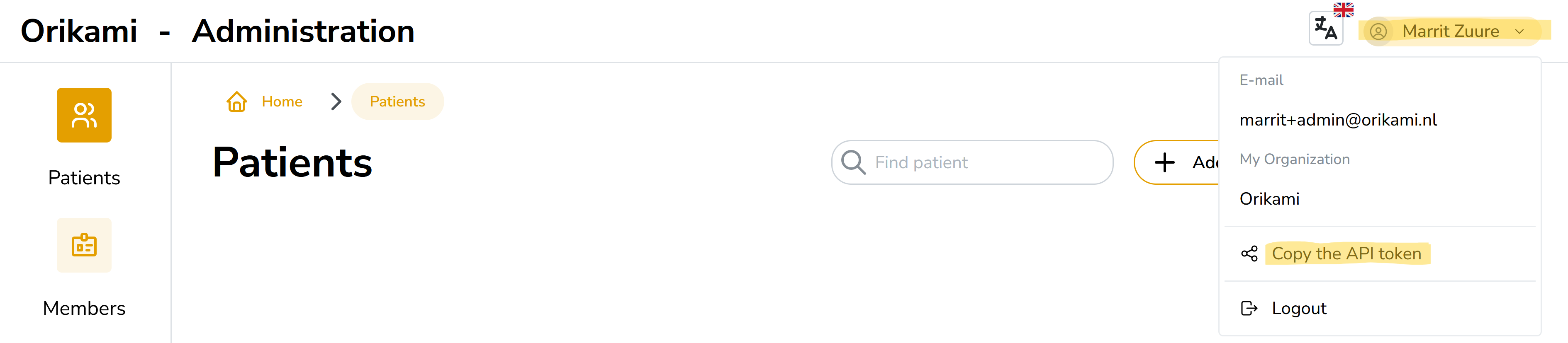
1. Obtain Your API Key 🔑
-
Log in to the KRANE platform with your credentials.
-
Navigate to the top-right corner in any window.
-
Click the user name to open the dropdown menu.
-
Look for "Copy the API token".
-
Clicking this button will copy the API key 🔑 to your clipboard for use in the next steps.
2. Locate the Python Script for Data Export
-
After downloading the provided Python script, locate it in your "Downloads" folder.
-
The file will typically be named
RLTDataExportOrikami.py. Ensure the file is in the correct location before continuing.
3. Set Up Your Python Environment
Before running the script, make sure that your environment has the required Python libraries requests and pandas installed. To install the necessary libraries using the pip package manager, use the following command in your terminal or command prompt:
pip install requests pandas
4. Paste Your API Key Into the Script
-
Open the
RLTDataExportOrikami.pyfile in a text editor, such as Notepad, Sublime Text, or Visual Studio Code. -
Look for the section of the script where the API key is defined. It’s located in line 22. It should look something like this:
'authorization': 'bearer eyJhbGciOiJSUzI1NiIsInR5cCI6IkpXVCIsImtpZCI6InpMSEJ1b21lOWg3Zkw2M0VQTUJrUCJ9.eyJodHRwczovL2tyYW5lLm9uZS9zdHVkaWVzIjpbXSwiaHR0cHM6Ly9rcmFuZS5vbmUvdGVuYW50Ijoicmx0LWFkcnoiLCJodHRwczovL2tyYW5lLm9uZS9vcmdBZG1pbkluIjoicmx0LWFkcnoiLCJodHRwczovL2tyYW5lLm9uZS9wcm9kdWN0QWRtaW5JbiI6InJsdC1hZHJ6IiwiaHR0cHM6Ly9rcmFuZS5vbmUvb3JnX25hbWUiOiJybHQtYWRyeiIsImh0dHBzOi8va3JhbmUub25lL2FwaU5hbWUiOiJFeHRlcm5hbCBBUEkiLCJodHRwczovL2tyYW5lLm9uZS9vcmdJZCI6Im9yZ19xYW0xdktVNVYxdDZLdnNyIiwiaHR0cHM6Ly9rcmFuZS5vbmUvcm9sZXMiOlsiT3JnYW5pemF0aW9uQWRtaW4iXSwiaXNzIjoiaHR0cHM6Ly9rcmFuZS5ldS5hdXRoMC5jb20vIiwic3ViIjoiM1pNQ2dRU29SbEtlaFRHWHd1RGxRSG1sclFMaTRnQkFAY2xpZW50cyIsImF1ZCI6Imh0dHBzOi8va3JhbmUub25lIiwiaWF0IjoxNzI1OTcxMjQwLCJleHAiOjE3MjYwNTc2NDAsInNjb3BlIjoicmVhZDp1c2VycyB1cGRhdGU6dXNlcnMgZGVsZXRlOnVzZXJzIGNyZWF0ZTp1c2VycyByZWFkOnVzZXJzX2FwcF9tZXRhZGF0YSB1cGRhdGU6dXNlcnNfYXBwX21ldGFkYXRhIGNyZWF0ZTp1c2Vyc19hcHBfbWV0YWRhdGEgcmVhZDpyb2xlcyBjcmVhdGU6cm9sZV9tZW1iZXJzIHJlYWQ6cm9sZV9tZW1iZXJzIGRlbGV0ZTpyb2xlX21lbWJlcnMgcmVhZDpvcmdhbml6YXRpb25zIHVwZGF0ZTpvcmdhbml6YXRpb25zIGNyZWF0ZTpvcmdhbml6YXRpb25zIGRlbGV0ZTpvcmdhbml6YXRpb25zIGNyZWF0ZTpvcmdhbml6YXRpb25fbWVtYmVycyByZWFkOm9yZ2FuaXphdGlvbl9tZW1iZXJzIGRlbGV0ZTpvcmdhbml6YXRpb25fbWVtYmVycyBjcmVhdGU6b3JnYW5pemF0aW9uX2Nvbm5lY3Rpb25zIHJlYWQ6b3JnYW5pemF0aW9uX2Nvbm5lY3Rpb25zIHVwZGF0ZTpvcmdhbml6YXRpb25fY29ubmVjdGlvbnMgY3JlYXRlOm9yZ2FuaXphdGlvbl9tZW1iZXJfcm9sZXMgcmVhZDpvcmdhbml6YXRpb25fbWVtYmVyX3JvbGVzIGNyZWF0ZTpvcmdhbml6YXRpb25faW52aXRhdGlvbnMgZGVsZXRlOm9yZ2FuaXphdGlvbl9tZW1iZXJfcm9sZXMgcmVhZDpvcmdhbml6YXRpb25faW52aXRhdGlvbnMgY3JlYXRlOnRlcnJhX2Nvbm5lY3Rpb24gY3JlYXRlOnRlcnJhX2Nvbm5lY3Rpb25zIHJlYWQ6dGVycmFfZGF0YV9vcmdhbml6YXRpb25fdXNlcnMiLCJndHkiOiJjbGllbnQtY3JlZGVudGlhbHMiLCJhenAiOiIzWk1DZ1FTb1JsS2VoVEdYd3VEbFFIbWxyUUxpNGdCQSIsInBlcm1pc3Npb25zIjpbInJlYWQ6dXNlcnMiLCJ1cGRhdGU6dXNlcnMiLCJkZWxldGU6dXNlcnMiLCJjcmVhdGU6dXNlcnMiLCJyZWFkOnVzZXJzX2FwcF9tZXRhZGF0YSIsInVwZGF0ZTp1c2Vyc19hcHBfbWV0YWRhdGEiLCJjcmVhdGU6dXNlcnNfYXBwX21ldGFkYXRhIiwicmVhZDpyb2xlcyIsImNyZWF0ZTpyb2xlX21lbWJlcnMiLCJyZWFkOnJvbGVfbWVtYmVycyIsImRlbGV0ZTpyb2xlX21lbWJlcnMiLCJyZWFkOm9yZ2FuaXphdGlvbnMiLCJ1cGRhdGU6b3JnYW5pemF0aW9ucyIsImNyZWF0ZTpvcmdhbml6YXRpb25zIiwiZGVsZXRlOm9yZ2FuaXphdGlvbnMiLCJjcmVhdGU6b3JnYW5pemF0aW9uX21lbWJlcnMiLCJyZWFkOm9yZ2FuaXphdGlvbl9tZW1iZXJzIiwiZGVsZXRlOm9yZ2FuaXphdGlvbl9tZW1iZXJzIiwiY3JlYXRlOm9yZ2FuaXphdGlvbl9jb25uZWN0aW9ucyIsInJlYWQ6b3JnYW5pemF0aW9uX2Nvbm5lY3Rpb25zIiwidXBkYXRlOm9yZ2FuaXphdGlvbl9jb25uZWN0aW9ucyIsImNyZWF0ZTpvcmdhbml6YXRpb25fbWVtYmVyX3JvbGVzIiwicmVhZDpvcmdhbml6YXRpb25fbWVtYmVyX3JvbGVzIiwiY3JlYXRlOm9yZ2FuaXphdGlvbl9pbnZpdGF0aW9ucyIsImRlbGV0ZTpvcmdhbml6YXRpb25fbWVtYmVyX3JvbGVzIiwicmVhZDpvcmdhbml6YXRpb25faW52aXRhdGlvbnMiLCJjcmVhdGU6dGVycmFfY29ubmVjdGlvbiIsImNyZWF0ZTp0ZXJyYV9jb25uZWN0aW9ucyIsInJlYWQ6dGVycmFfZGF0YV9vcmdhbml6YXRpb25fdXNlcnMiXX0.rMKLJzlwk55K4OlBwLjfHBI1qDpInuEIB02mNS0oJ1WJ1mSeXE9w608zQWV5j3MFIVSoXmt4bavU86LKYgF5b-0qe1BHSgX6iYdKjqk_HxZymYvKeGLPZLAEfiMH4zYQ-IhNe2xt59OkJKuR3XIMFnE18eOg96PLhM55qdTq2Pdf4ChulVEgUJcHy20pT6bl-ScdLoSyrjcUq6BmuId7YScU4c7EogKJD5Q9p4_HN0xiUfaa84kPYTMYr5nUBEd_GBdYE48uHFyTH2qp9FTCgAgk1oOR6ZvJSknMon3vTpzru-ZTY9t6qgV-dJJAM0-BwYEF3DqF7bBOWDcbylCd8Q'
-
Replace
"your-api-key-here"with the actual API key🔑 you copied earlier. For example:
'authorization': 'bearer [your-api-key-here]'
-
Look for the section at the end of the script where the name of the Excel file will be determined. It’s located in line 78. It should look something like this:
if __name__ == "__main__":
    merge_dataframes(headers, printing=True, saving=True, suborg="rlt-adrz")
-
Replace
"suborg="rlt-adrz"with the actual name of the suborganization. For example:
if __name__ == "__main__":
    merge_dataframes(headers, printing=True, saving=True, suborg="rlt-UMCG")
Save the changes (CTRL + S) to the script file.
5. Run the Python Script
-
In the command prompt or terminal, while still in the "Downloads" folder, run the Python script by typing:
C:\Users\luder>cd downloads
python RLTDataExportOrikami.py
The export will be made and the Excel file placed in the folder which contains the script.
7. Verify the Exported Data
-
Navigate to the location where the data file was saved, as specified by the script.
-
Open the file to verify that the data has been successfully exported.
Troubleshooting
-
Invalid API Key: If you encounter an "invalid API key" error, ensure you copied the key correctly and that it hasn’t expired. Keys are set to expire after 24 hours. You can generate a new key from your account settings if needed.
-
Python Errors: If you receive Python-related errors, make sure that Python is installed correctly and that all required libraries (i.e.,
requestsandpandas) are installed. Check the error message for more specific details.