
1. Introduction
1.1 Purpose
The purpose of this section is to describe the functionality and usage of the One-Time Link Experiment(s) feature. This feature enables project managers to generate, distribute, and manage secure one-time links for participants, allowing them to access one or more experiments directly on their mobile devices without the need to log in.
1.2 Scope
This feature applies to all projects/studies that require participants to complete experiments only one time through the mobile app. It supports both iPhone and Android devices and manages different access scenarios depending on the participant’s device.
The feature also handles special cases such as:
-
Participants who do not have the app installed.
-
Access from unsupported devices (e.g., desktop browsers).
-
Expired or reused links.
1.3 Definitions
One-Time Link: A unique, secure URL generated for a specific participant that provides access to assigned experiment(s).
Participant ID: A unique identifier associated with each link.
Project ID: A unique identifier corresponding to a specific project configuration.
2. Functional Overview
The One-Time Link Experiment(s) feature simplifies participant access by allowing direct navigation to the app through a personalized link.
Each link includes a secure token and can be created individually or in bulk through the API by specifying:
-
Participant ID
-
Project ID
-
Language
-
Expiration date/time
Links are compatible with both iPhone and Android devices.
3. Workflow
3.1 Normal Flow
Step 1 – Generate One-Time Links
-
Project managers create one-time links via the API.
-
Each link is generated individually or in bulk and distributed to participants (e.g., via email).
-
Each link includes a secure token for authentication and is valid until its expiration date.
Step 2 – Participant Access via Link
When participants open their personalized link:
-
If the app is installed:
-
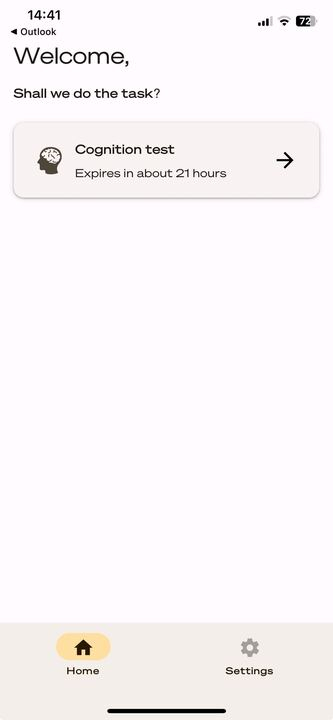
The app opens directly.
-
Participants are taken to the Home screen where their assigned experiment(s) are displayed.
-
-
If the app is not yet installed:
-
iOS (all accounts) and Android (Business Google Accounts): Participants must click the link again after installation to access the Home tab. This behavior is explained on the app.
-
Android (regular Google accounts): The app opens automatically after installation without requiring a second click.
-
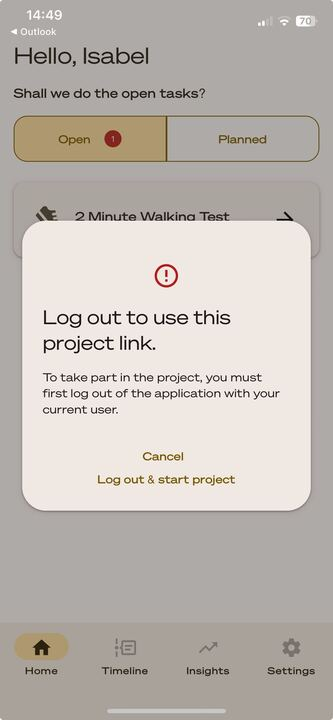
Step 3 – Participants Already Logged In
If participants already have the app installed and are logged in:
-
A message is displayed when accessing the link.
-
Upon confirmation, participants are redirected directly to the Home screen.
Step 4 – Access from Unsupported Devices
If a participant attempts to open the link from an unsupported device (e.g., desktop browser):
-
An informative error page is displayed, indicating that the device is not supported.
Step 5 – Expired Links
Expired links are handled consistently across all devices.
-
When accessed, a clear message is shown stating that the link is no longer valid.
Step 6 – Completion Confirmation
Once participants complete all assigned experiments:
-
A confirmation message appears.
-
The experiment(s) are no longer accessible from anyone.
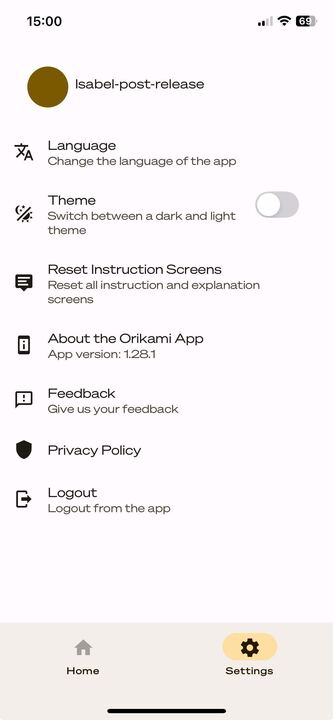
Step 8 – Settings Tab
The Settings tab provides additional configuration and information options, including:
-
Language configuration
-
Theme
-
Instructions configuration
-
App information
-
Feedback
-
Privacy Policy
-
Logout