1. Introduction
1.1 Purpose
The purpose of this section is to describe the functionality and configuration of the Step Count Experiment. This experiment collects step data from one or more data sources available on the participant’s device, depending on the setup defined in the project.
The experiment supports multiple providers (Phone, Garmin, and BYOD) and allows Members to specify which data sources are optional and which are required for participants to complete the experiment.
1.2 Scope
The Step Count experiment can be added to new and existing projects and allows configuration of:
-
Number of days
-
Data sources
Supported data sources include:
-
Phone → Apple HealthKit & Android Recording API/Android Health Connect
-
Garmin → Garmin SDK
-
BYOD → Android Health Connect & Apple HealthKit
1.3 Definitions
Step Count Experiment: An experiment that collects and stores steps from participants over a configured number of days.
Allowed data source: An optional data source. Participants may use it if available on their device.
Required data source: A mandatory data source. Participants must enable it to complete the experiment.
2. Functional Overview
The Step Count Experiment allows collection of steps from multiple configurable sources. Members can:
-
Add the experiment to any project
-
Select one or multiple data sources
-
Mark each data source as Allowed or Required
-
Configure the duration of the experiment
-
Schedule it like any other experiment
3. Workflow
3.1 Member Flow (Krane Portal)
The Member can add the Step Count experiment to new or existing projects.
From the project configuration (see Figure 1):
-
Select Add Experiment
-
Choose Step Count Experiment
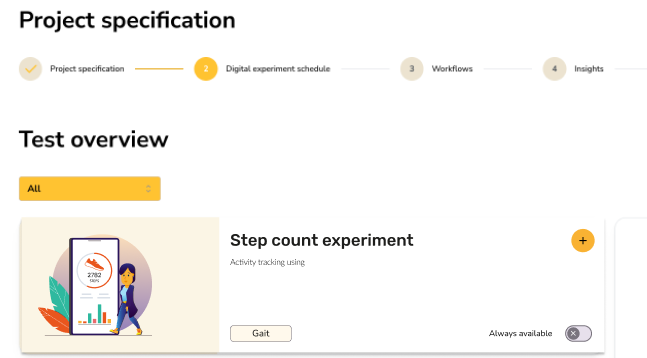
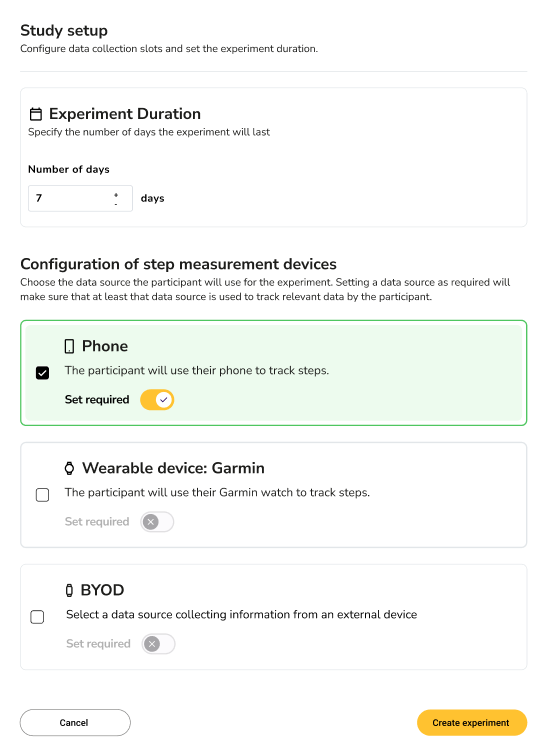
Then, the Member configures the experiment (see Figure 2) as follows:
-
Number of Days: Defines the total duration of the step tracking period.
-
Data sources: The system allows selecting multiple sources: Phone, Garmin, BYOD.
Each source can be set as:
-
Allowed → The participant may use it
-
Required → The participant must use it
At least one source must be marked as Allowed or Required.
The Step Count experiment can be scheduled like any other experiment.
If the schedule is updated after some participants have already started, experiments already in progress are not affected.
3.2 Participant Flow (App)
3.2.1 Phone selected in the Portal
When Phone is selected, the following steps are presented to the participant:
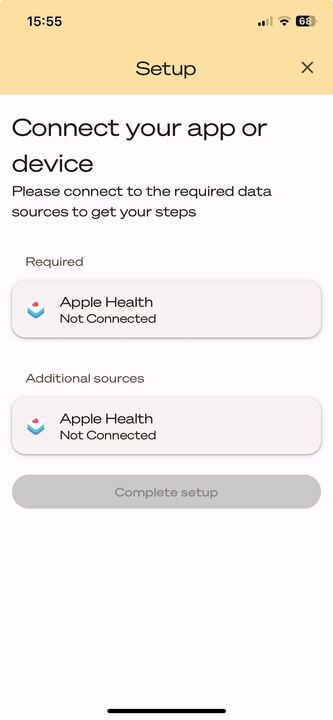
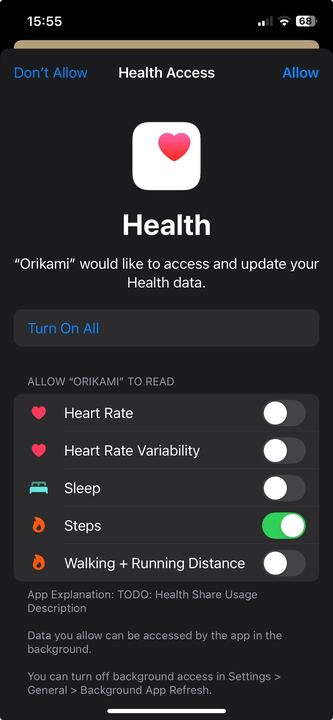
(Participant has iOS: app uses Apple HealthKit)
-
A setup screen appears to initiate the connection (see Figures 1 and 2).
Participant has Android: app uses Android Recording API, and if the phone does not have it, then Android Health Connect)
-
A consent popup is displayed requesting permission to enable Activity Recognition.
-
If there is no Recording API, a setup screen appears to initiate the connection through Android Health Connect.
3.2.2 BYOD selected in the Portal
When BYOD is selected by the Member:
-
Participants are guided through the Android Health Connect or Apple HealthKit setup screens.
3.2.3 Garmin
When Garmin is selected by the Member:
-
Participants are shown the corresponding Garmin setup screens in the app.
-
The connection with the Garmin device is established via Bluetooth.
3.3 Instructions
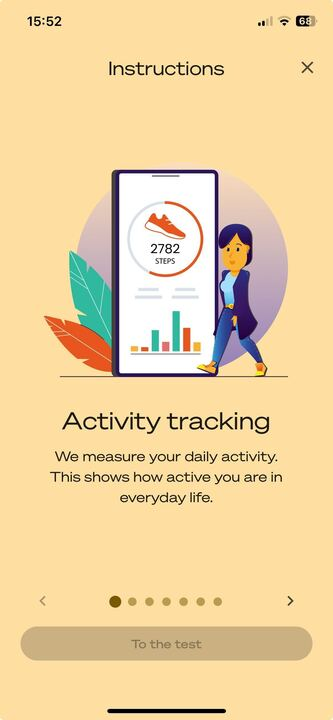
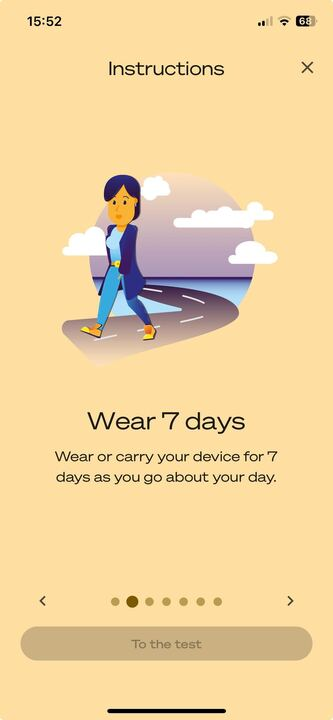
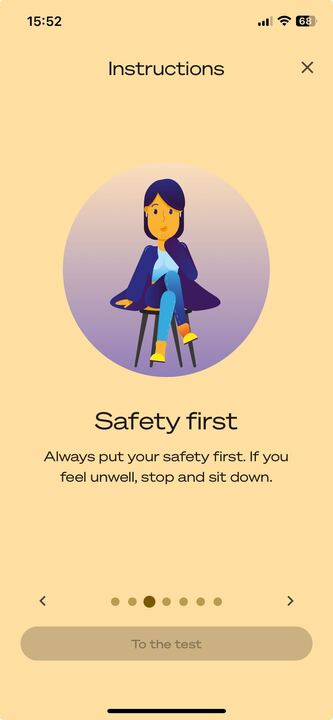
Dynamic instructions are displayed based on the device(s) selected by the Member. First-time participants must complete all instruction screens before starting the Step Count Experiment.
Figure 3 shows examples of Generic Instruction screens.
3.4 Start the Experiment
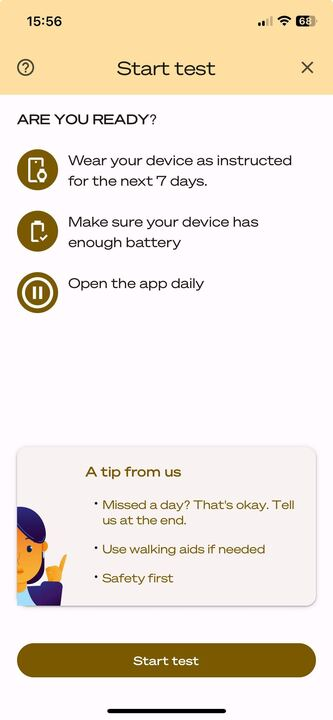
Participants can start the experiment via the “ARE YOU READY?” screen (see Figure 4).
Once the experiment starts:
-
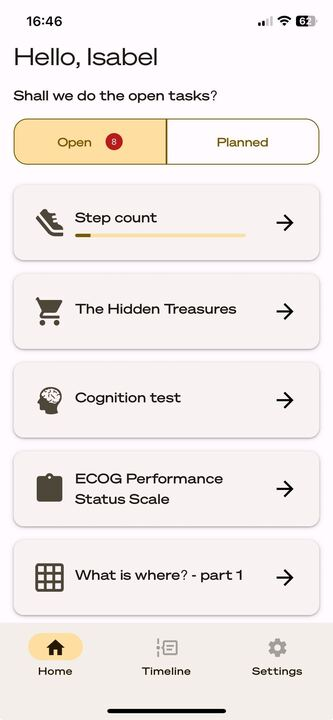
Progress is displayed in the Home tab (see Figure 5).
-
Participants can view:
-
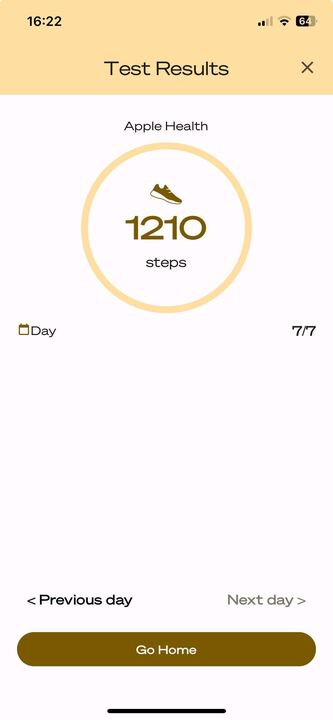
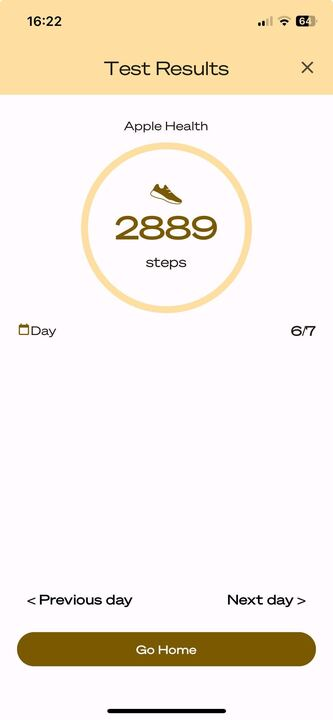
Steps recorded for the current day (see Figure 6)
-
Steps recorded for previous days (see Figure 7)
-
3.5 Finish the Experiment
The final result is automatically calculated based on a minimum of 3 valid wear days and it is based on the average daily step count.
Once the experiment is completed:
-
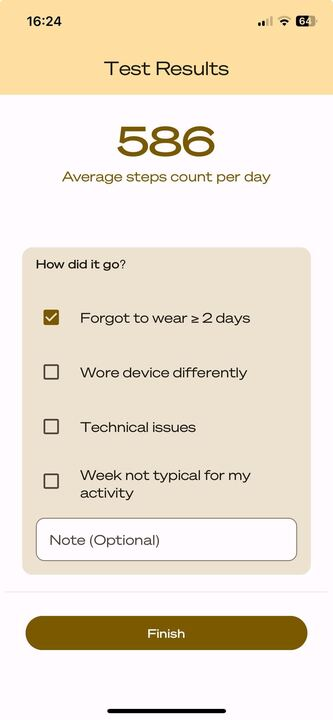
The final screen displays the average steps per day (see Figure 8).
-
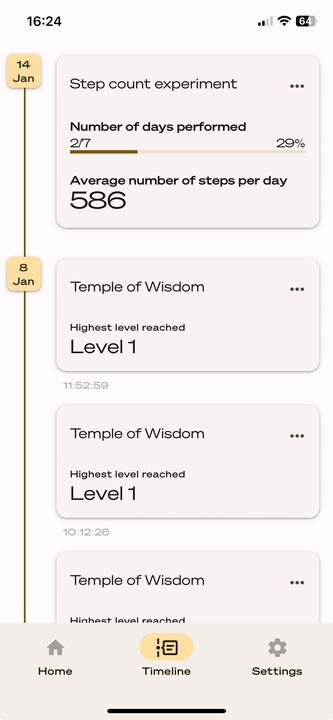
Selecting Finish removes the experiment from the Open tab and appears in the Timeline (see Figure 9).
If the participant logs out or reinstalls the app, any previously synced data remains included in the final results.