

1. Introduction
Welcome to the KRANE™ Management Portal user guide. This document outlines the necessary steps to create and manage an account for an organization member. Follow these instructions carefully to ensure a smooth experience.
1.1. Purpose
📋 This Instruction for Use provides a comprehensive set of tasks required to create an account for an organization member, allowing access to the KRANE™ Management portal.
1.2. Definitions
|
Term |
Definition |
|---|---|
|
Caregivers (Members) Section |
The section in the portal where organization members can manage employee accounts. |
|
Credentials |
The username and password used by members to log in to the portal. |
|
Invitation Email |
An email sent to a new member with instructions to activate their account. |
|
KRANE™ Management Portal |
The online platform used for managing organization member accounts. |
|
New Employee Button |
The button in the portal used to add a new member by filling in basic information. |
|
Organization Admin |
An individual responsible for managing member accounts within an organization. |
|
Organization Member |
An individual who has administrative access to the KRANE™ Management Portal. |
|
Reset Password Procedure |
The process used to receive a new invitation email if the original invitation has expired. |
|
Welcome Email |
An email received by new members to set their password and activate their account. |
1.2. Scope
🔍This guide covers the complete lifecycle, from creation to obsolescence.
1.3. Responsibilities
📞For assistance, contact your main point of contact or organization administrator to receive an invitation or the correct credentials.
2. Procedure Description
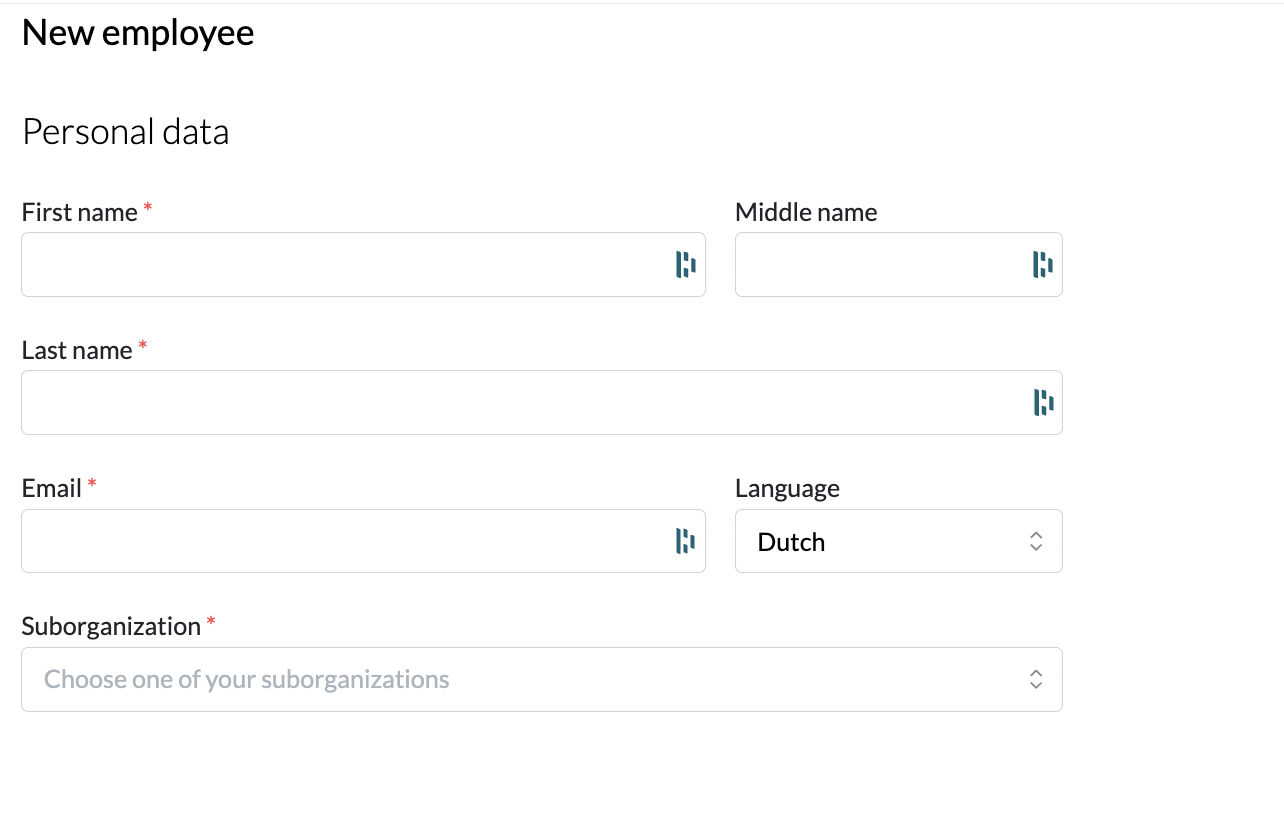
Step 1: Invite a new member
To invite a new member (employee):
-
🌐 Navigate to the portal at admin.KRANE™.one using your account.
-
📂 Go to the "Caregivers (Members)" section.
-
➕ Click on the "New Employee" button.
-
📝 Fill in the basic information required.
-
📧 An invitation email will be sent to the specified email address in the chosen language.

Step 2: Activate your account
To activate your account:
-
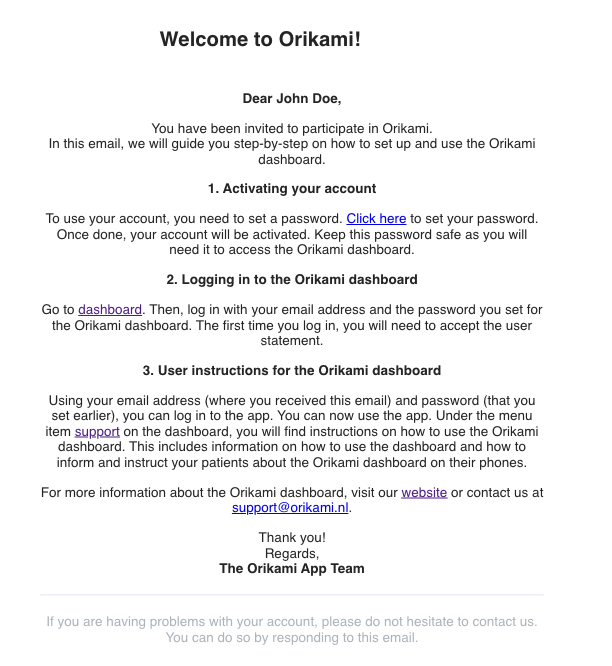
📬 Open the welcome email received and set your password.
-
🏢 The organization name will be in the subject of the email.
⏳ Note: If the invitation is too old, you won't be able to set your password.
Step 2: Re-Activate your account
-
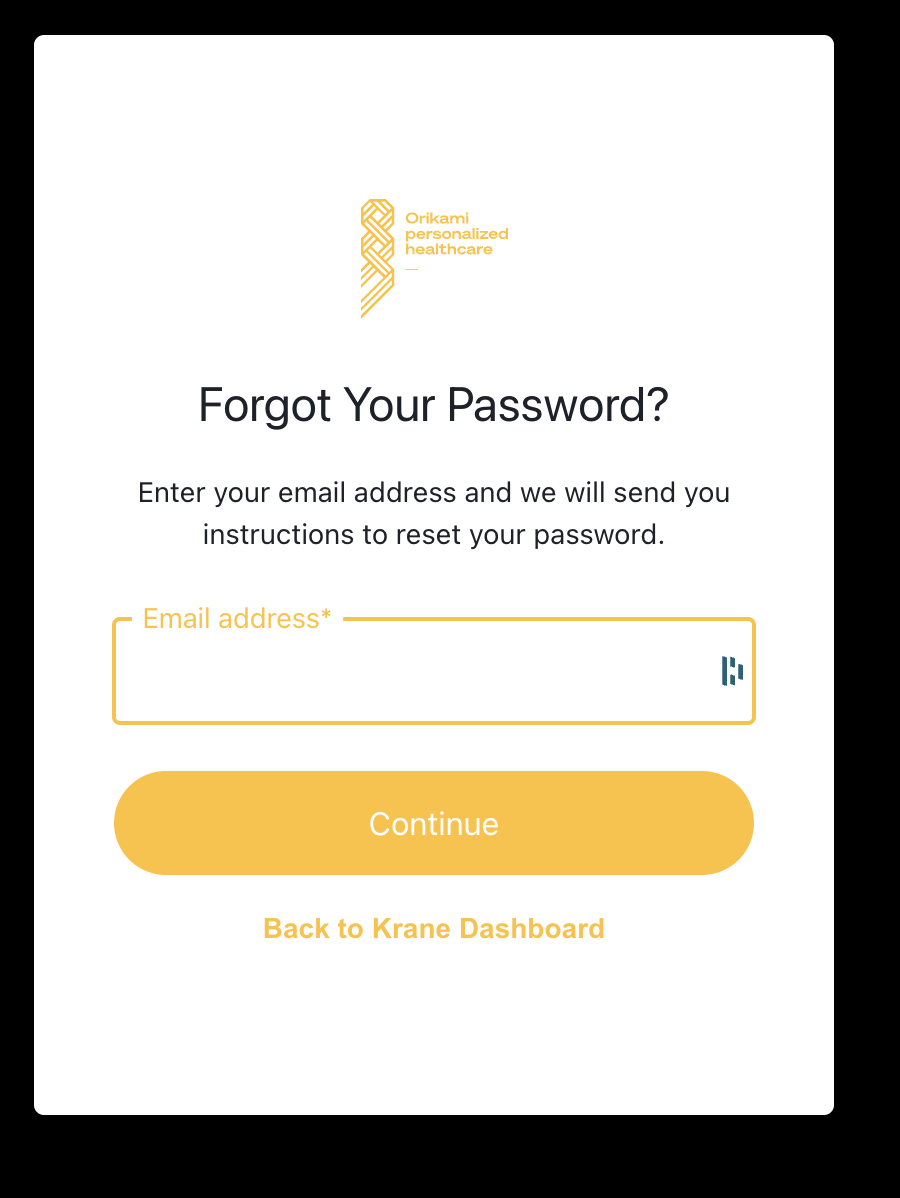
Use the reset password procedure at admin.KRANE™.one to get a new invitation email. To reset your password: navigate to admin.KRANE™.one and use the reset password procedure to receive a new invitation email.
-
🔗 Click the “Click Here” link in the welcome email to set your password.
🔄 Use the "Forgot Your Password" procedure if your invitation has expired.
Step 3: Login
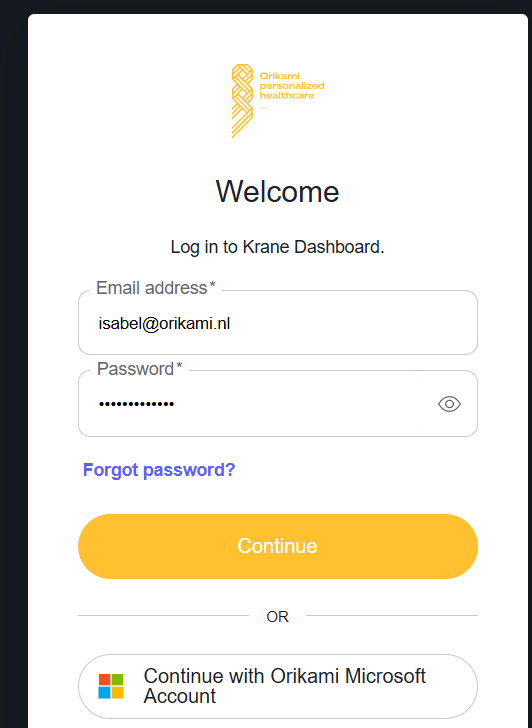
To login:
-
🔑 Enter your credentials.
-
🔄 If you are a member of multiple organizations, select the organization you wish to access upon logging in.
-
🚀 You can log in directly with your organization’s Single Sign-On (SSO). No separate password is required. After logging in via SSO, you will be taken straight to the Krane Portal without needing to enter any additional credentials.
Step 4: Logout
To logout:
-
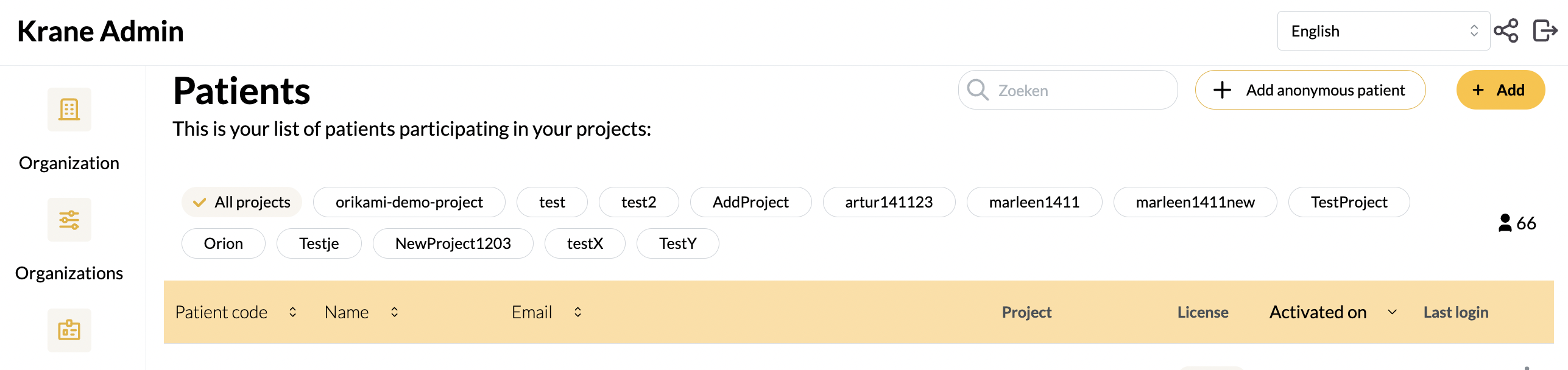
🚪 Click the logout button located in the upper right corner.
Step 5: Delete account
To delete your account:
-
📞 Contact your organization admin for assistance.
-
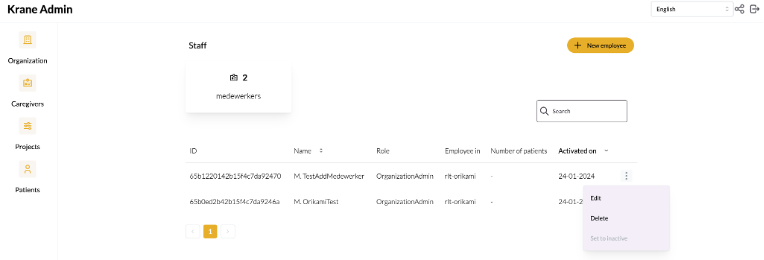
🗑️ An organization admin can remove a member by clicking the three dots on the right and selecting "Delete."
Note: Once an employee is deleted, it will no longer be possible to add an employee with the same email address.
By following these instructions, you can efficiently manage user accounts within the KRANE™ Management Portal. For any additional assistance, please contact your organization admin or main point of contact.