
1. Introduction
1.1 Purpose
This Instruction for Use describes the participant flow within the mobile application for the BAMCOG cognitive tests, with a focus on the instruction screens presented before each test starts.
The BAMCOG tests assess different cognitive domains using short, gamified tasks. To minimize confusion, clear and motivating instructions are provided before test execution, followed by an optional practice round prior to the actual test.
This document covers the general instruction concept and participant flow for the following BAMCOG tests:
-
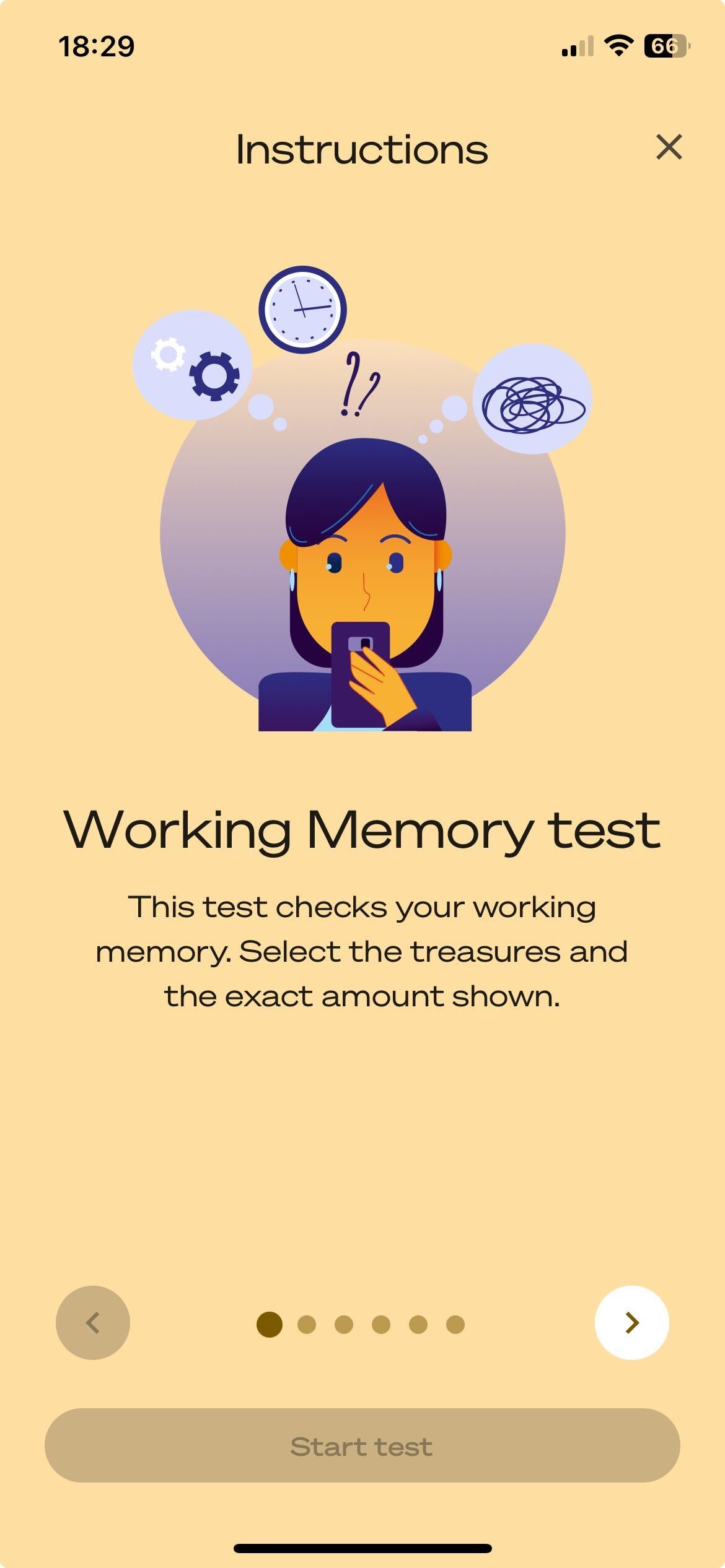
🧠 The Hidden Treasures – Working Memory test
-
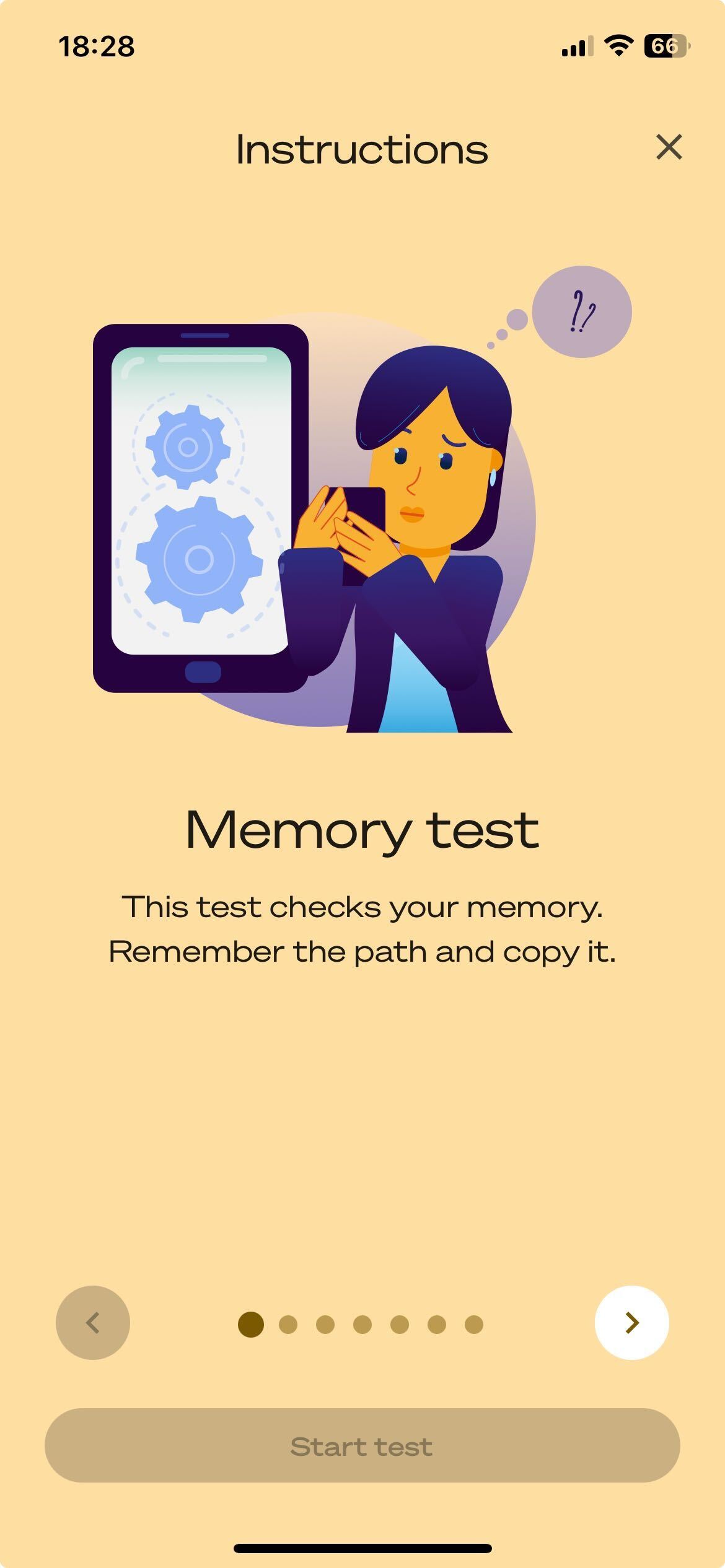
🔐 Nebo’s Amulet – Memory test
-
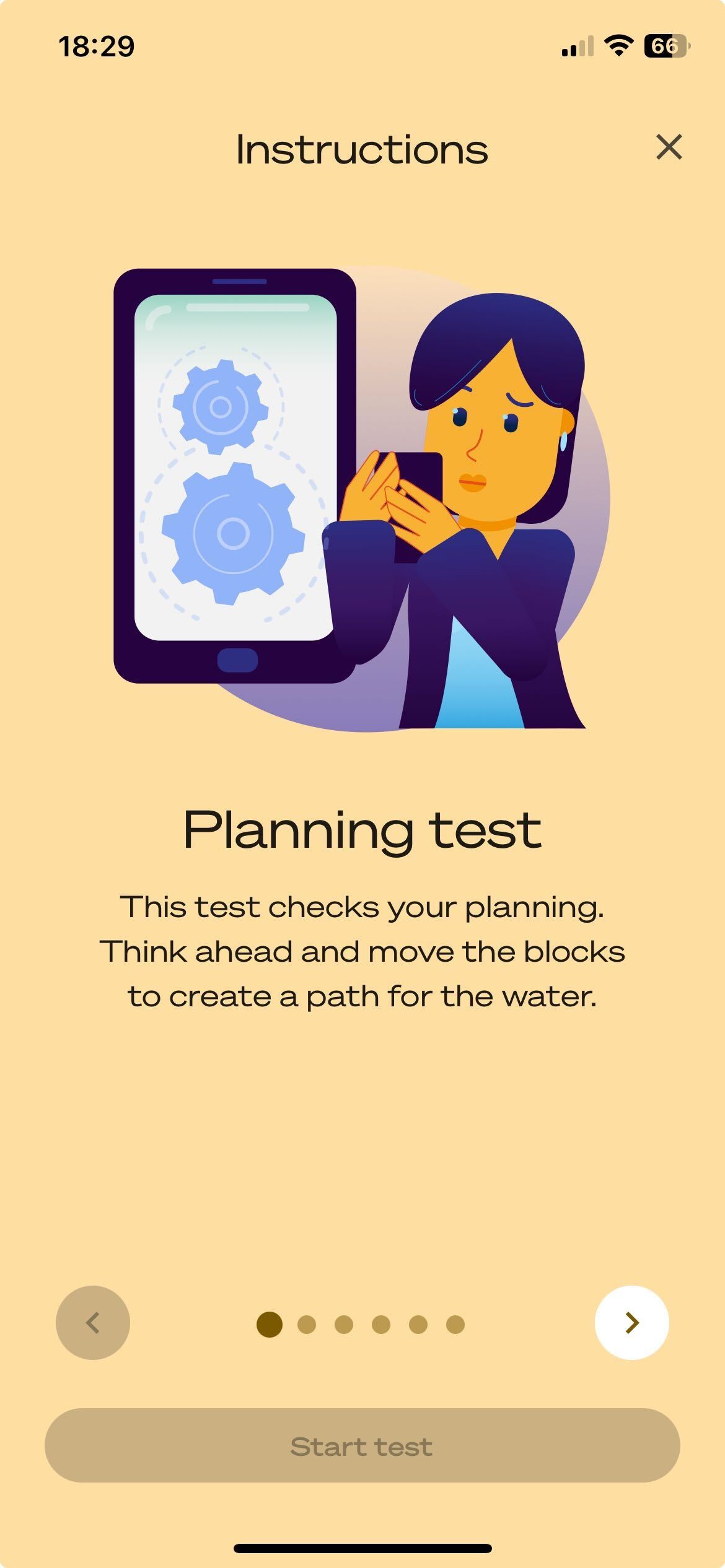
🧩 Temple of Wisdom – Planning test
2. Procedure Description
Step 1: Select BAMCOG Test
🧠 Test selected in the app
When a BAMCOG test is selected by the participant for the first time, the app automatically presents a sequence of instruction screens before the test can be started.
⚠️ First-time participants must complete all instruction screens and the practice round before starting the test.
Step 2: Test-specific Instructions
📖 Instruction screens
The instruction screens:
-
Explain the goal of the test, how to interact with it, and how progression and difficulty adaptation work.
-
Remain readable when accessibility font scaling is applied (large font sizes and small screens).
All BAMCOG tests are structured into 3 levels, each containing 3 rounds, and at least 2 rounds per level must be completed correctly to progress. The difficulty adapts automatically depending on participant performance.
🧠 The Hidden Treasures – Working Memory Test
📌 Instruction highlights
-
Treasures float across the screen on water.
-
Each type of treasure must be tapped the same number of times as shown in the on-screen example.
-
The test should be completed in a quiet environment without distractions.
🔐 Nebo’s Amulet – Memory Test
📌 Instruction highlights
-
A path is briefly displayed on a set of blocks.
-
The path disappears and must be reproduced by tapping the blocks in the same order.
-
The test should be completed in a quiet environment without distractions.
🧩 Temple of Wisdom – Planning Test
📌 Instruction highlights
-
Blocks can be moved using on-screen arrows.
-
The objective is to plan ahead and create a path that allows water to flow between two corners.
-
The test should be completed in a quiet environment without distractions.
Step 3: Start the Test
🚀 ARE YOU READY?
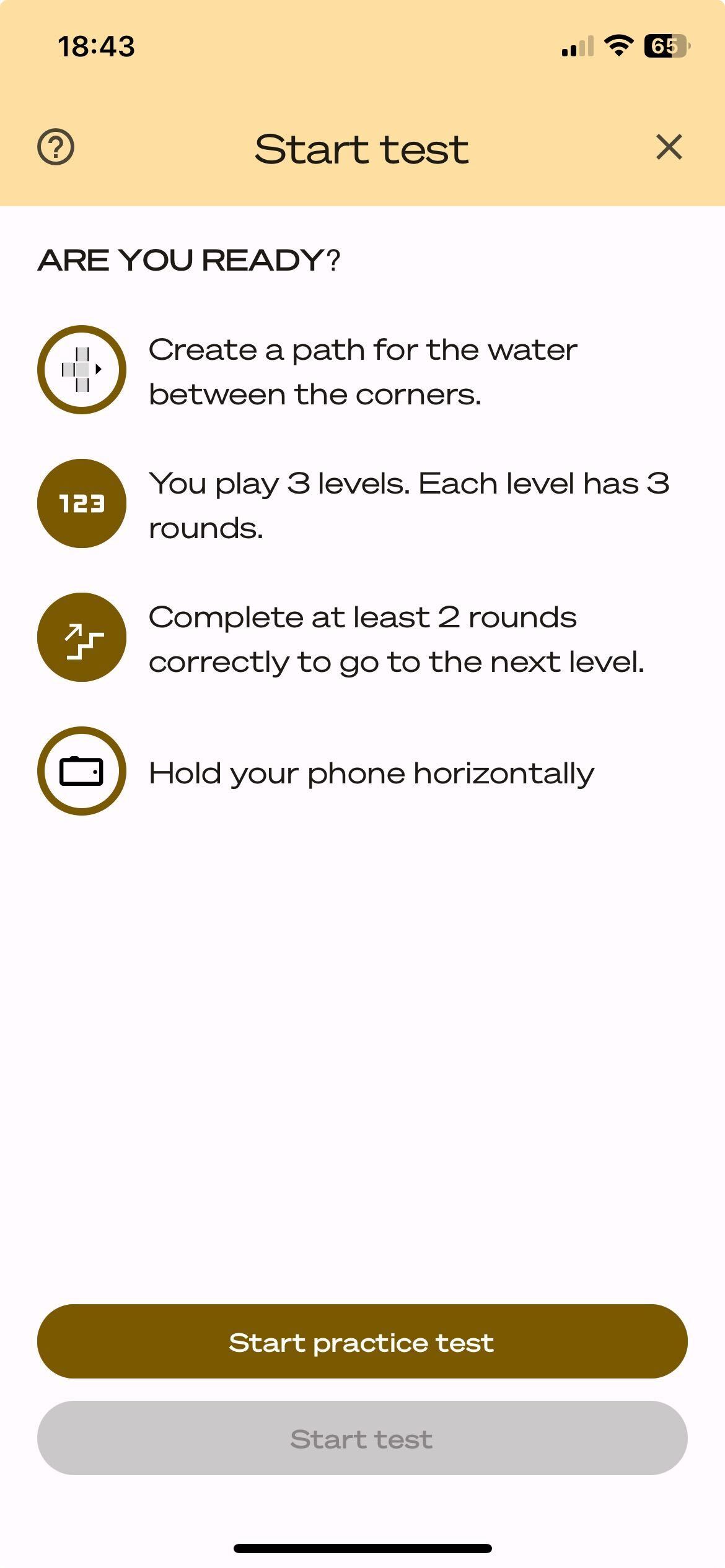
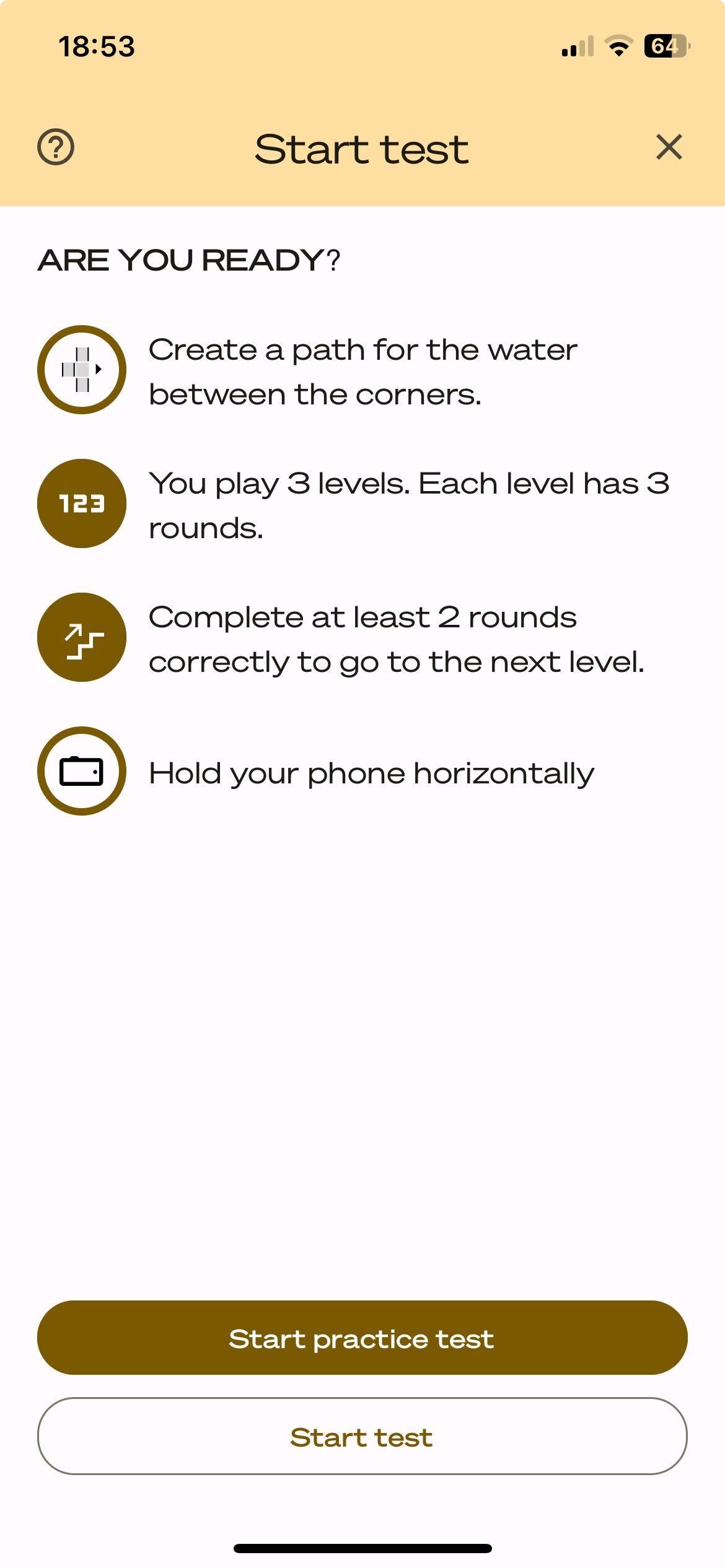
After completing all instruction screens, the practice round, and at least one test attempt, an “ARE YOU READY?” screen is displayed.
This screen:
-
summarizes the main task and progression rules;
-
offers the option to start a practice test (even though it was already done in the past);
-
allows the participant to proceed directly to the test if the practice phase is skipped.
▶️ Once the test starts, the instruction screens are no longer shown during test execution.
Step 4: Finish the Test
🏁 Test Completion
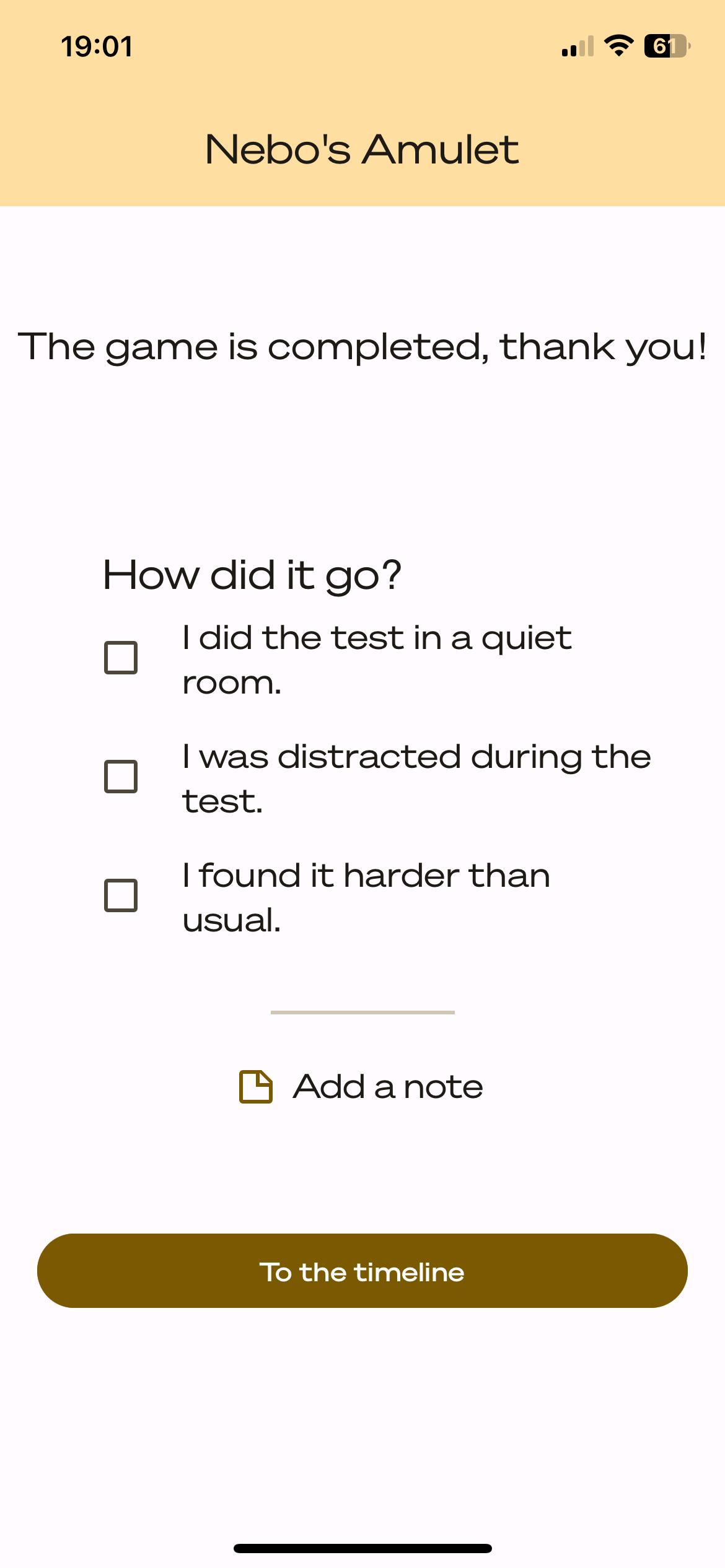
When a BAMCOG test is completed and the participant clicks on To the timeline:
-
results are calculated and saved automatically according to the predefined scoring logic;
-
the completed test is removed from the list of open tasks (if not set to Always Available in the dashboard);
-
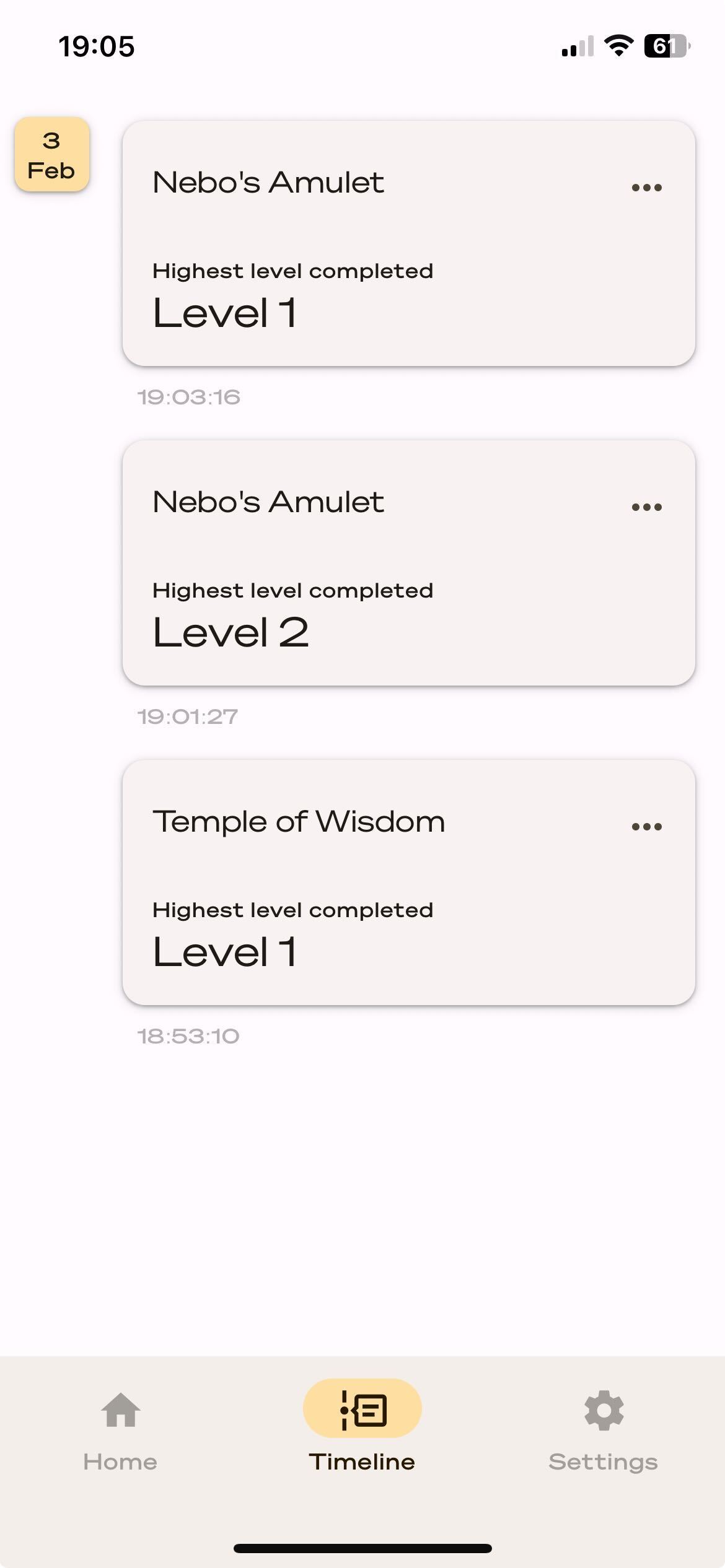
results are displayed in the timeline tab.
🔄 If the participant logs out or reinstalls the app, previously collected data remains available.