
1. Introduction
1.1 Purpose
📋 This Instruction for Use describes the functionality of Request Multiple Assessments. This feature allows Members Requestors to request multiple assessments for one or more results at once, supporting workflows that require independent evaluations.
The functionality also supports uploading reference results (gold standard data), which are treated as results themselves and can be requested for assessment. Full support is provided for linking index results with their corresponding reference results, enabling structured validation workflows and expert review.
1.2 Definitions
Requestor:
👤 A Member who initiates a request for one or more expert assessments on one or more results.
Assessor:
👤 A Member with relevant expertise who reviews results and provides a structured expert assessment.
Assessor Organization:
🏥 The organization selected to perform assessments.
Assessment Request:
📝 A formal request sent to one or more Assessor Organizations asking them to assess results.
Bulk Request:
📦Request assessments for multiple results at once in a single action.
Index Result:
📄 A system-generated result produced by the platform from a measurement or test,
Reference Result:
📎 A manually uploaded result (e.g., a PDF report) obtained from another device or source, typically used as reference or gold-standard data for validation and expert comparison.
2. Functional Overview
The Multiple Assessment feature allows Members to:
➕ Request multiple independent assessments for one or more results
🏢 Select multiple organizations (so multiple assessors) per request
💬 Add a message to the request
🔄 Track assessment status (Pending / Completed)
🗑 Remove results
3. Procedure Description
3.1 Request Assessments from Results table
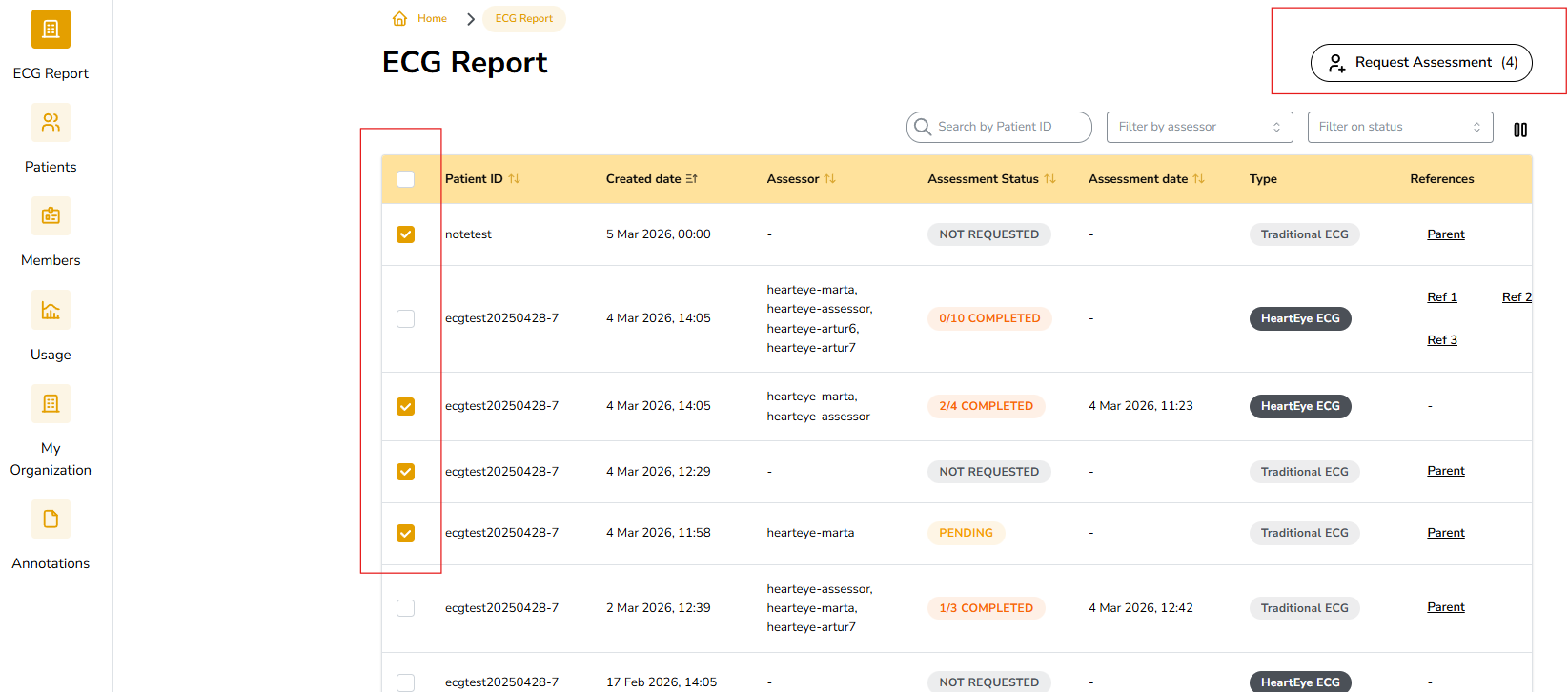
➕ Select one or more results from the table
📝 Click on Request Assessment
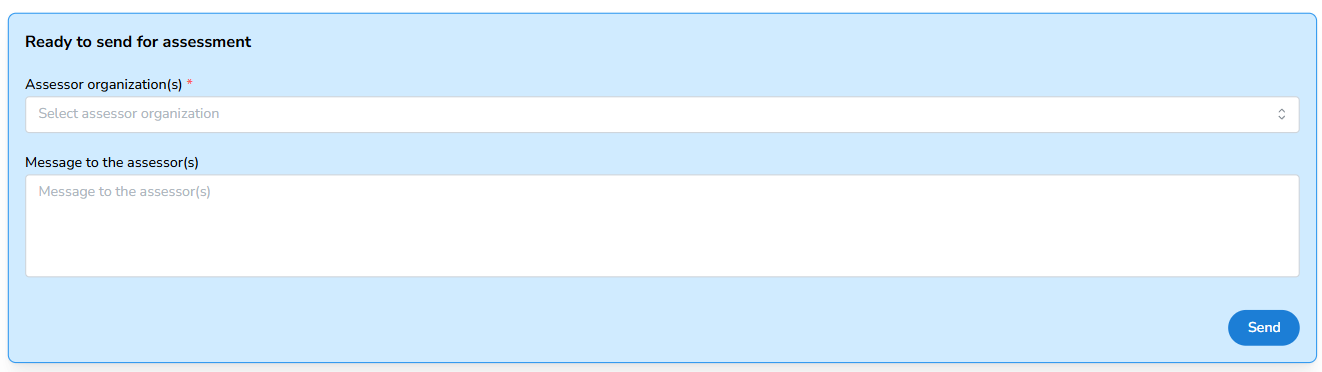
🏢 Choose one or multiple organizations
💬 Add an optional message
✅ Click on Send
🔔 After request sent, a confirmation notification appears indicating the request has been successfully sent. The assessment becomes available for the selected organization(s) to assess.
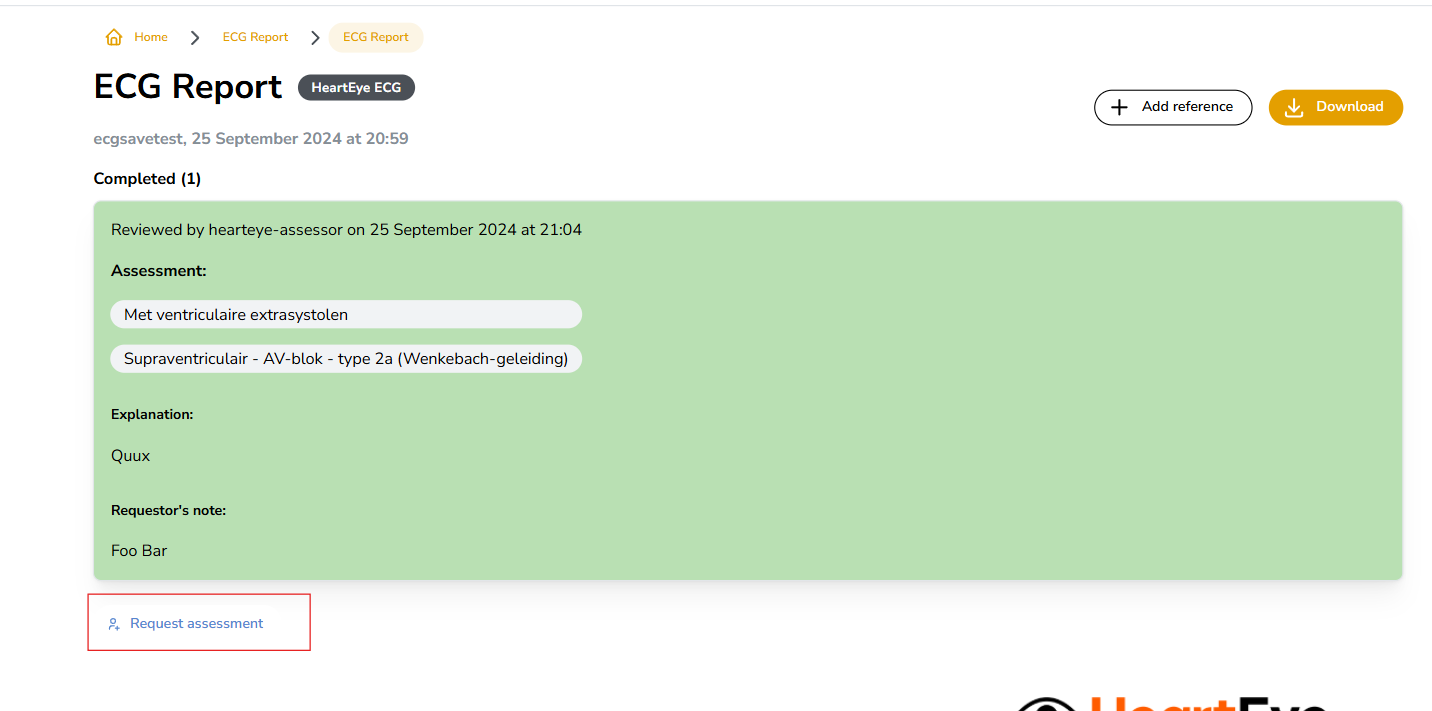
⚠️ If a Member wants to request more than one assessment for the same result and the same organization, each request must be submitted separately using the “Request Assessment” button (see Figure 4).
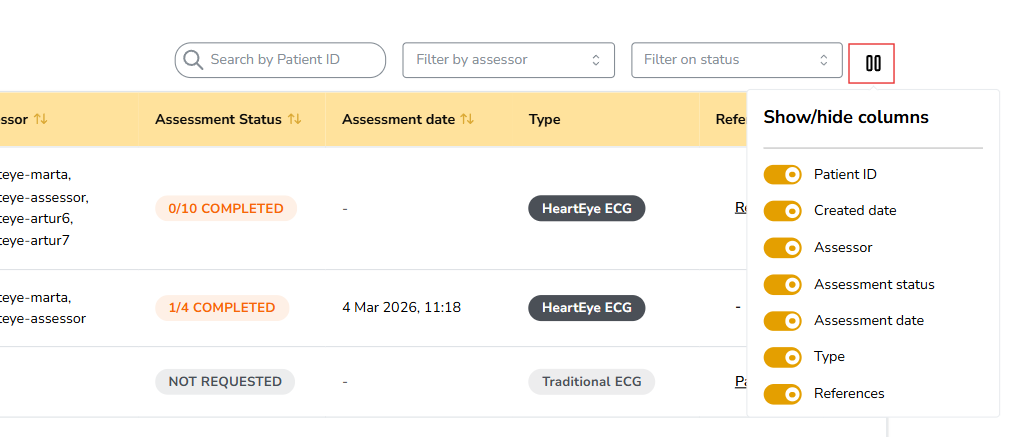
Members are allowed to customize columns from the results table:
3.2 Request Assessments from Result detail view
📝 Click on Request Assessment
3.3 Track Assessment Status
Depending on whether a result has been requested (or not) for one or more assessments, the possible statuses are:
⚪ Not Requested – No assessment has been requested for a result
⏳ Pending – An assessment has been requested but not completed for a result
🟠 Completed – Multiple assessments have been requested but not all of them have been completed for a result
✅ Completed – All requested assessments have been completed
Status visibility is available both in the table view and in the detail view.
3.4 Add Reference Result
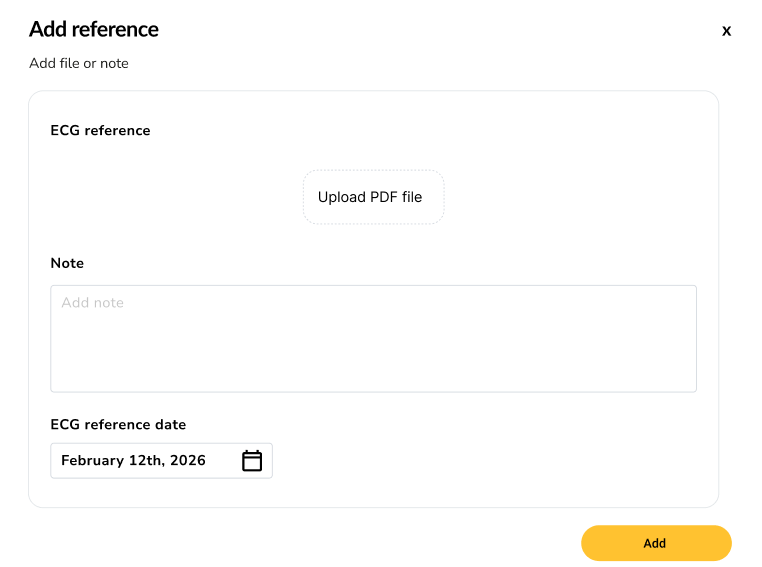
➕ Select Add Reference (see Figure 4)
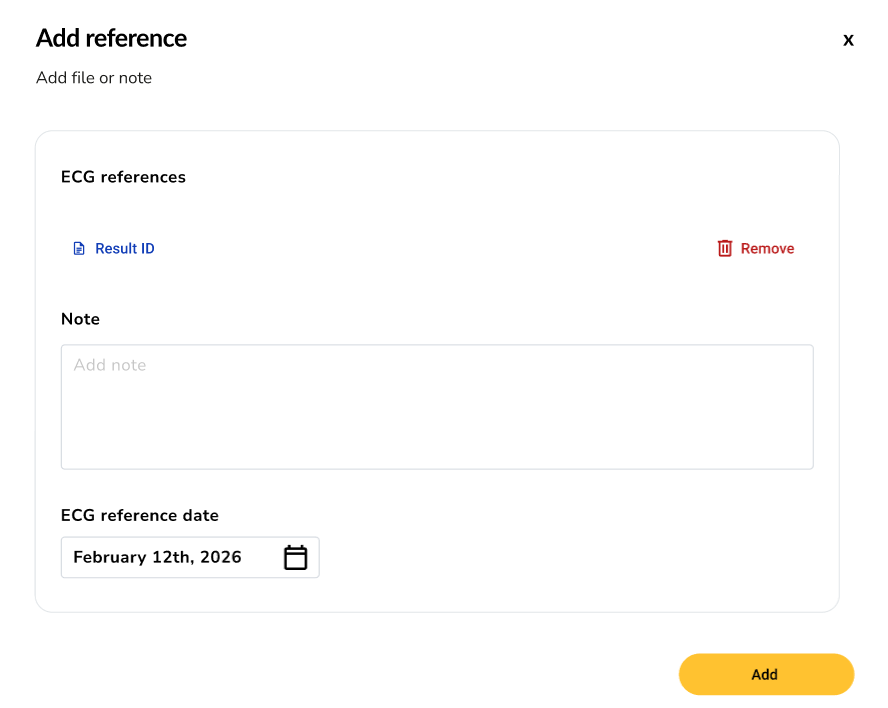
📎 Upload a PDF file (see Figures 5.1 and 5.2)
📝 Add a note
📅 Enter the Created Date
✅ Click on Add
The reference result:
📊 Can be requested for assessment
🔗 Is linked to the corresponding index result
3.5 Result Deletion
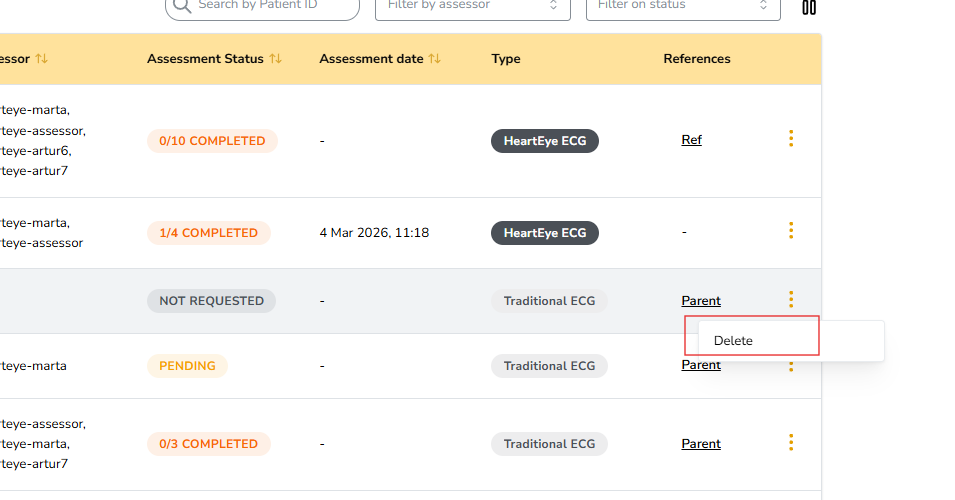
Requestors are allowed to remove results.
➤ Locate the desired result in the Results table
⋯ Click on the three-dot menu located on the right side of the result row
🗑 Select Delete