

Summary
We’re excited to share what we’ve been building! Our latest Krane App Woodpecker Release (August 10th 2026), introduces new authentication methods, including Passkeys and Email OTP, along with bug fixes and improvements to platform stability.
🚀 Login Experience
We've introduced new authentication options to make signing in more secure, accessible, and user-friendly for both new and existing users. These improvements reduce the need to remember and enter passwords while maintaining a high level of security.
Passkey Authentication
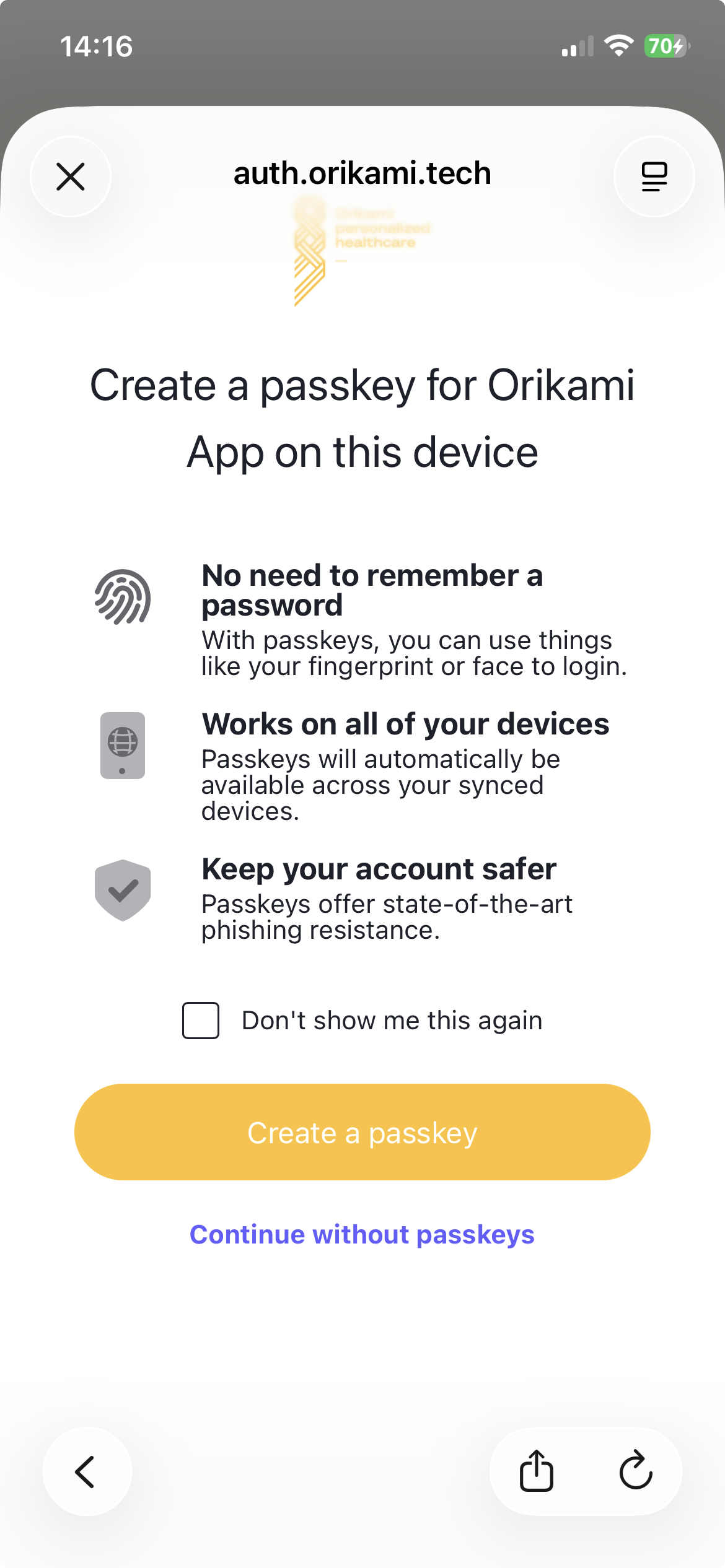
Users can now register and use Passkeys as an alternative to traditional password-based authentication. Passkeys allow users to sign in quickly and securely using the authentication method available on their device, such as Face ID, Touch ID, fingerprint recognition, or a device PIN. See the short video below for an example of a participant signing in using Face ID with a Passkey.
Users who prefer not to use a Passkey can simply skip the setup process and continue signing in using their existing authentication method (Figure 1).
Email One-Time Password (OTP)
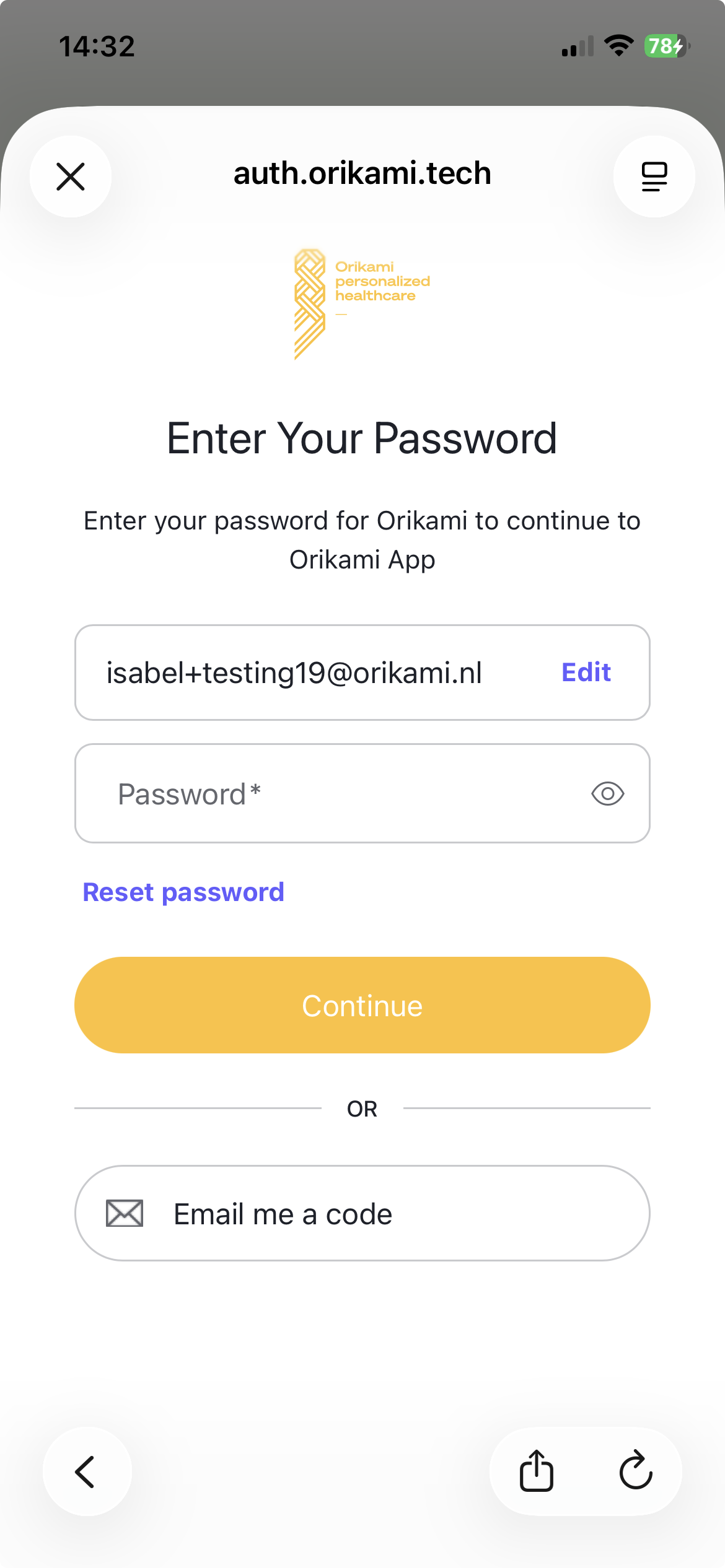
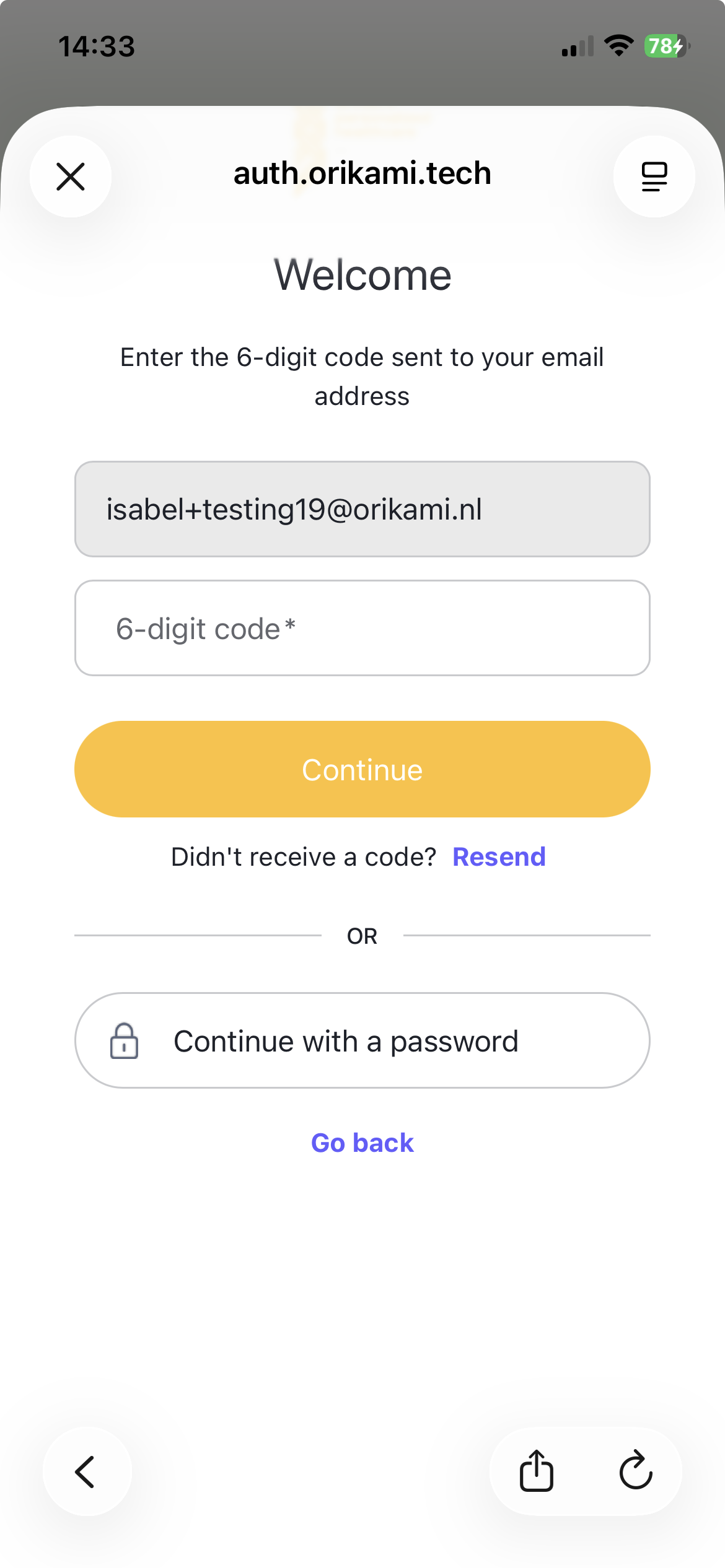
Users can also choose to sign in using a One-Time Password (OTP) sent directly to their registered email address. After entering their email address, users receive a one-time code that can be used to securely access their account without entering their password. The login screen also allows users to switch between the available authentication methods at any time (Figure 2).
🐛 Bug Fixes & Improvements
To improve issue detection and product quality, we have migrated the app's feedback functionality from Sentry to PostHog.
This release also includes several bug fixes to improve the app’s overall stability and consistency.
🚧 Upcoming: Garmin Integration
We have completed the integration with Garmin devices for Multi-Metric and Step Count experiments.
The integration is ready but is currently disabled, as it requires a Garmin license key before it can be activated. Once the license key is available, we will enable the feature in a future release and share detailed release notes with all the relevant information.
📖 Supporting Documentation!
While we finalize the updates to the Krane Knowledge Base, the following guidance may help you support participants with the new authentication methods. It is intended to serve as a first line of support for common login questions and issues.
Activate your account
To activate your account:
-
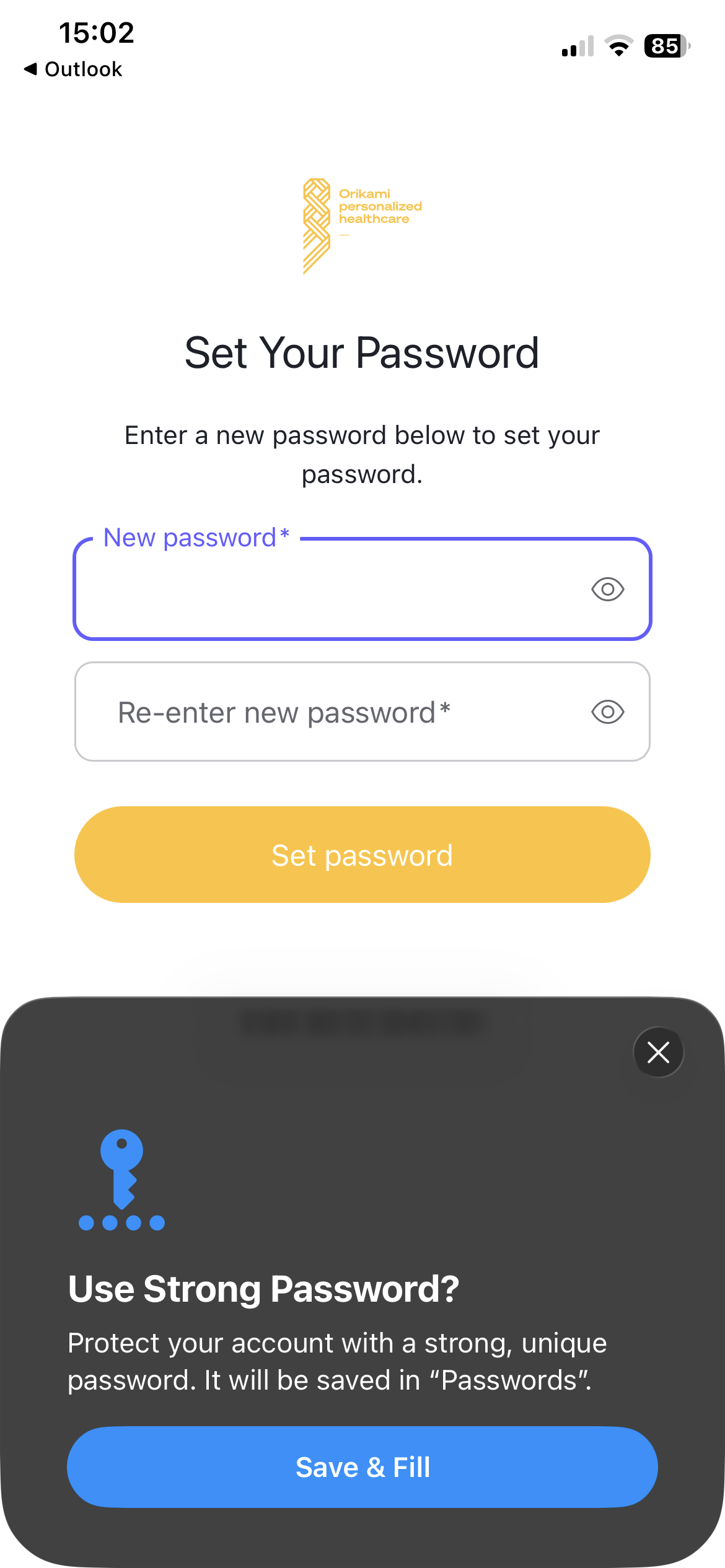
📧 Open the welcome email you received and set your password.
-
Manual
-
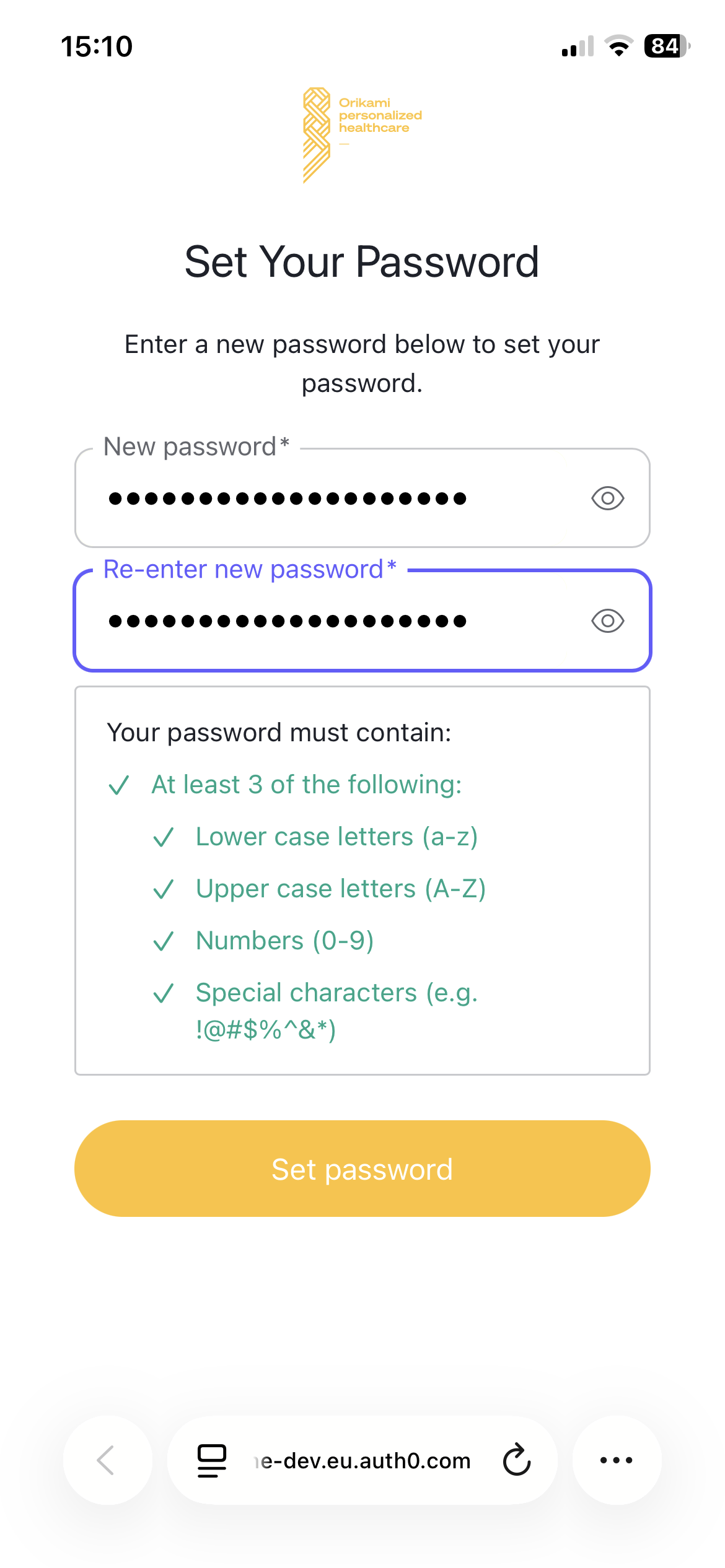
Strong Password (see image bellow)
-
-
📧 The subject of the email will include the name of the organization you have been invited to.
-
⏳ The invitation expires after 5 days, after which you will not be able to set your password.
-
❓ If this happens, use the “Forgot password” option on the login page to receive a new email.
-
🔗 Click the “Set your password” button in the welcome email to set your password.
-
💻If the password has been set on the computer, a message will appear indicating to login from the mobile device.
Login into the App
-
Open the App
-
📱 Open the App and tap "Start".
-
-
Sign in with your Email
-
✉️ Enter your email address and tap "Continue."
-
You can then choose one of the available authentication methods:
-
-
Choose Authentication methods:
-
🔑 Password
-
Enter your password and tap "Continue."
-
-
📧 Email One-Time Password (OTP)
-
Select "Email me a code."
-
A one-time verification code will be sent to your registered email address.
-
Enter the code in the app to complete the sign-in process.
-
-
Passkey - Needs configuration - see point 4
-
If you have already registered a Passkey, select "Continue with a passkey".
-
If you have not yet registered a Passkey, see Step 4: Register a Passkey.
-
-
🔄 You can switch between the available authentication methods directly from the login screen at any time.
-
🔐 Register a Passkey (Optional)
-
After successfully signing in using either your password or an Email OTP, you may be prompted to create a Passkey for future logins.
-
You can choose one of the following options:
-
Continue without Passkeys to keep using your current authentication method.
-
Create a Passkey to enable faster and more secure sign-in.
-
If you choose to create a Passkey, follow the instructions provided by your device. Depending on your device, authentication may use Face ID, Touch ID, Fingerprint Recognition, or your device PIN. Your Passkey will be securely stored on your device.
-
-
-
App Store / Google Play:
EN:
Orion App:
-
New Authentication Methods
-
Bug Fixes
Orikami App:
-
New Authentication Methods
-
Bug Fixes
TNO App:
-
New Authentication Methods
-
Bug Fixes
NL:
Orion App:
-
Nieuwe authenticatiemethoden
-
Bugfixes
Orikami App:
-
Nieuwe authenticatiemethoden
-
Bugfixes
TNO App:
-
Nieuwe authenticatiemethoden
-
Bugfixes