

1. Introduction
1.1 Purpose
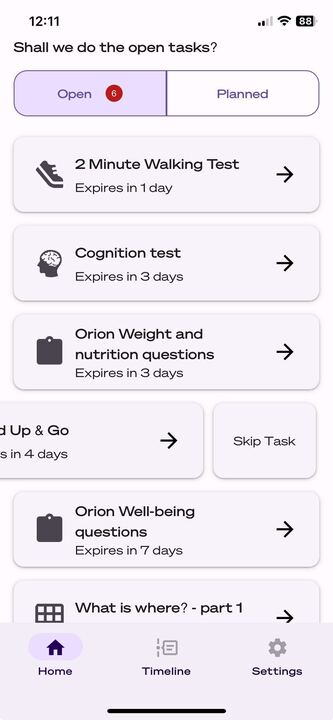
The purpose of this section is to describe the functionality and usage of the new "Skip Task" feature. This feature allows patients to indicate when they are unable to complete a task, offering more flexibility in task management while maintaining visibility and consistency in the workflows.
1.2 Scope
This feature applies to scheduled tasks within patient workflows in the app. It enables patients to skip tasks they cannot perform, provides a structured way to capture the reason, and ensures that skipped tasks remain visible.
This feature is not applicable to tasks marked as "Always available."
1.3 Definitions and Acronyms
-
Planned section: The area where all upcoming tasks are listed, regardless of their current status (e.g. skipped, not started).
-
Open section: The section where tasks currently available for completion are shown.
-
Snoozed task: A task that was skipped by the patient and marked with a reason.
-
Always available task: A task configured to be accessible at any time, which cannot be skipped.
2. Functional Overview
The Skip Task functionality allows patients to indicate that they are unable to complete a task. Once a task is skipped, it is no longer shown in the Open section, but remains visible in the Planned section with snoozed status.
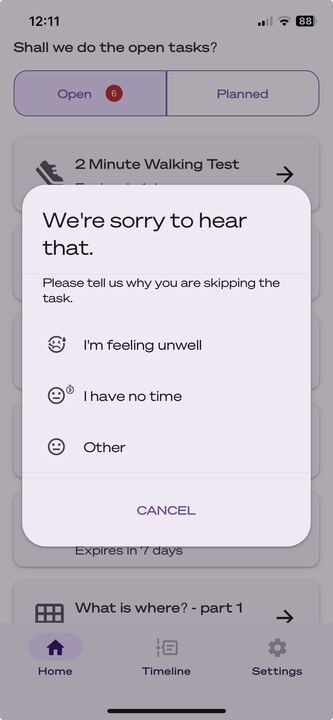
Patients are prompted to select a reason when skipping a task. The list of reasons is:
-
I'm feeling unwell
-
I have no time
-
Other
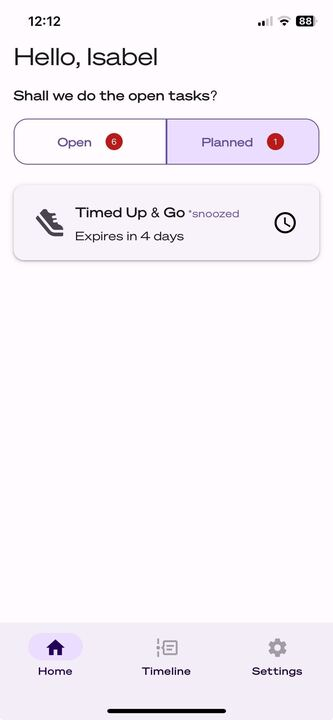
When two tasks of the same type exist (one skipped and one still scheduled), they are both shown in the Planned section.
Tasks remain visible in the Planned section until their expiration time, as defined by the workflow logic.
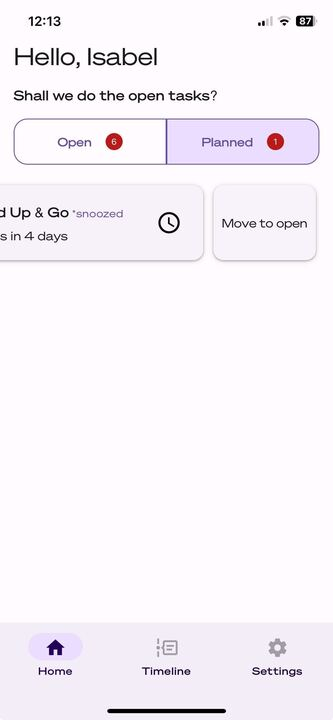
If the original scheduled time of a task has not yet passed, the patient has the option to revert their decision and move the task back to the Open section.
Tasks marked as Always available cannot be skipped.
3. Workflow
3.1 Normal Flow
-
Patient opens the Open section and selects "Skip Task".
-
A modal appears requesting a reason.
-
Upon confirmation, the task disappears from Open and moves to Planned, marked as snoozed.
3.2 Post-Skip Behavior
-
Skipped tasks remain in the Planned section until they expire.
-
User can move back the snoozed task to the Open section.