

1. Introduction
1.1 Definitions
|
Definition |
Description |
|---|---|
|
Participant |
End-users of the app, including patients and study participants. |
|
Organization Member |
Individuals with administrative access to the KRANE™ Management Portal. |
1.2. Purpose
📋This Instruction for Use provides the set of tasks required to create an account for participants - end users of the app like patients or study participants - to access a client app.
1.3. Scope
This guide covers the entire account lifecycle, from creation to obsolescence.
1.4. Responsibilities
Multiple member roles are able to create / invite new users.
2. Procedure description
You can invite three types of new participants:
-
standard (create an account with their own e-mail address); Use case: home monitoring.
-
pseudonymous (with an alias e-mail account that they don’t necessarily manage themselves); Use case: Temporary home monitoring in small scale study or
-
anonymous (no account details); Use case: Only possible in clinical setting when the device is provided by the researcher of caregiver and multiple participants use one device.
The steps are described below:
Step 1: Invite a new participant
To invite a new participant (standard):
-
🌐 Navigate to the portal at admin.krane.one.
-
🔑 Sign in with your organization member account and select the appropriate organization.
-
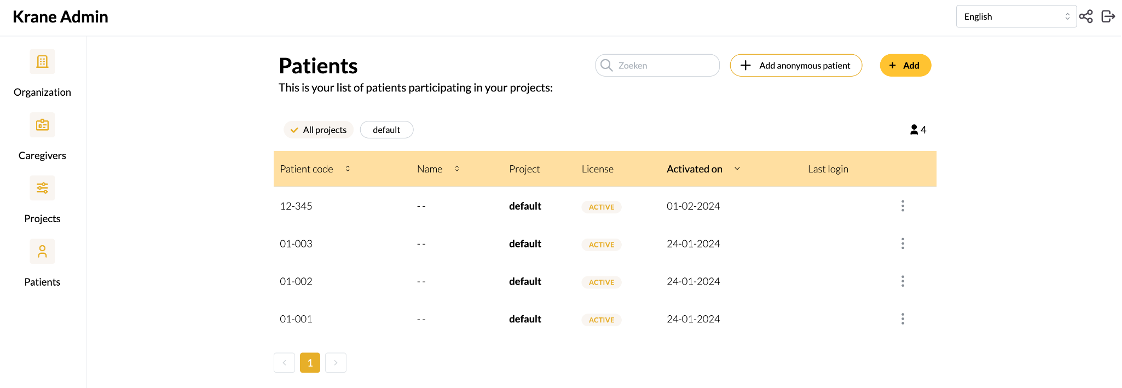
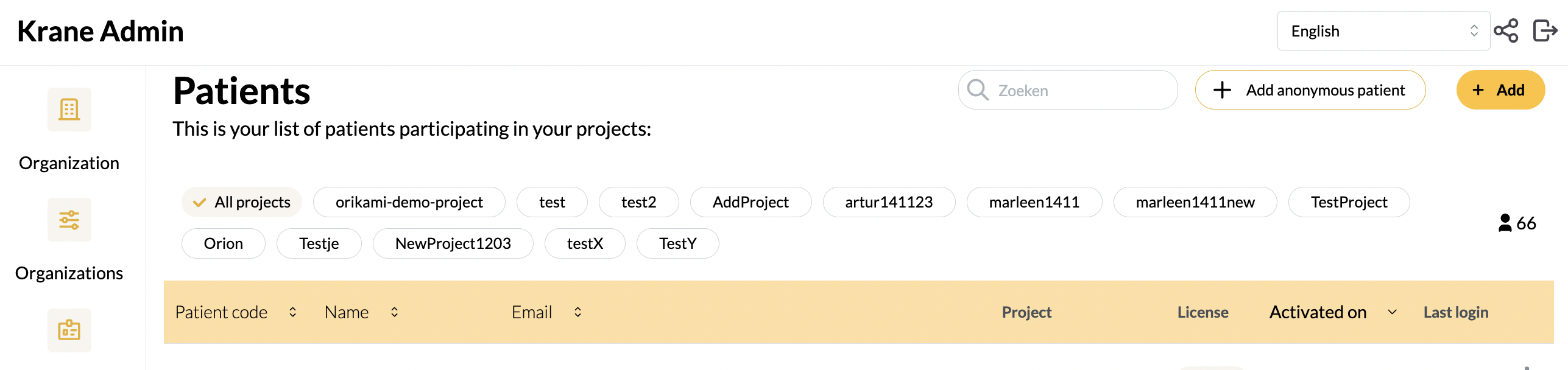
🗂️ Go to the "Patients (Participants)" section in the left-hand menu.
-
➕ Click the "Add" button.
-
📝 Fill in the basic information required to invite the participant.
To invite a new pseudonymous participant:
-
📝 Fill in the basic information required to invite the participant. This does not need to include the real name. It is important that the e-mail address is a functional e-mail address. Usually an alias provided by the research team (e.g. if you have a study alias study@institute.com this can usually be study+1@institute.com, study+2@institute.com etc.), letting the manager of the alias activate the separate accounts (see Step 2.) and then providing the account info to the participants to log in. Which account belongs to whom is only accessible if you save that information in a key.
To invite a new anonymous participant:
-
➕ Click the "Add anonymous patient" button.
-
📝 Choose a project for which you want to add a participant.
The next steps are not applicable for anonymous patients as they will not have their own accounts. This option is usually just for in-clinic use to let multiple participants use the same device.
❗We recommend creating new participants the standard way or use pseudonymous accounts.❗
Step 2: Activate your account
To activate your account:
-
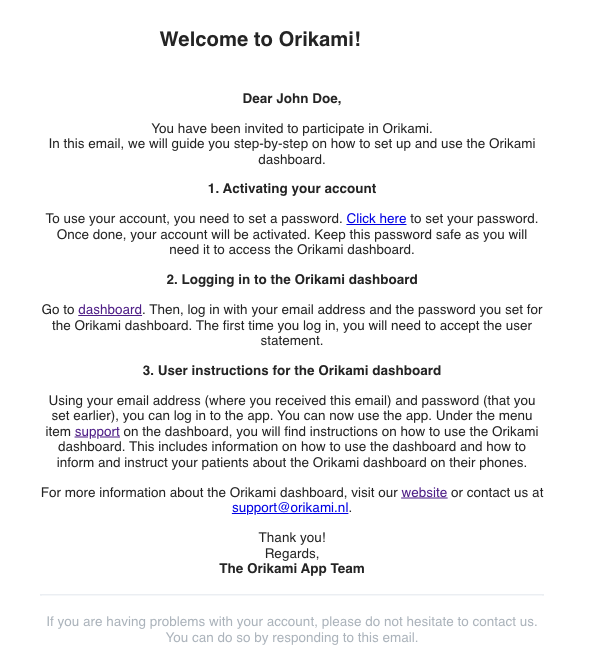
📧 Open the welcome email you received and set your password.
-
The subject of the email will include the name of the organization you have been invited to.
-
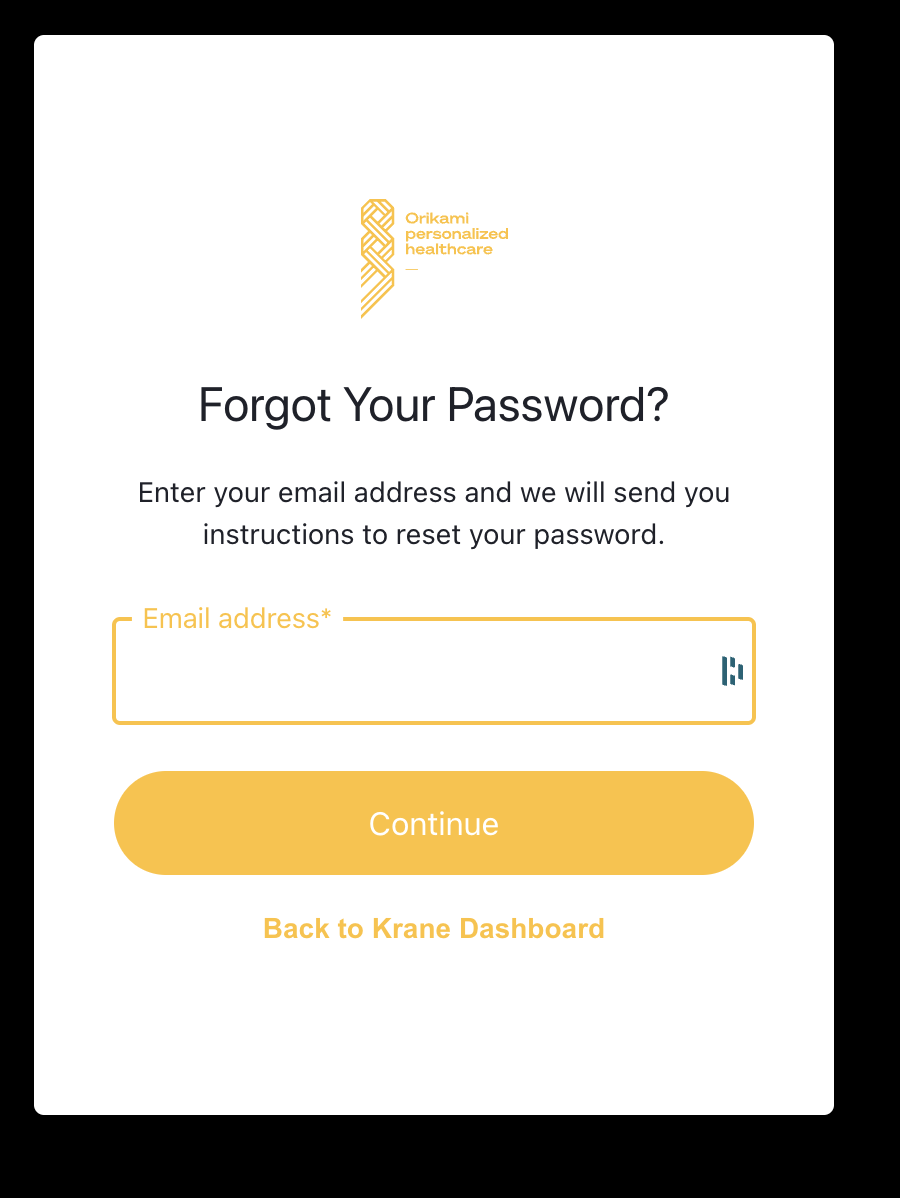
⏳ If the invitation is too old, you will not be able to set your password. Navigate to admin.krane.one and use the reset password procedure to receive a new invitation email.
-
🔗 Click the “Click Here” link in the welcome email to set your password.
-
❓ Use the "Forgot Your Password" procedure if your invitation has expired.
Step 3: Login
To login:
-
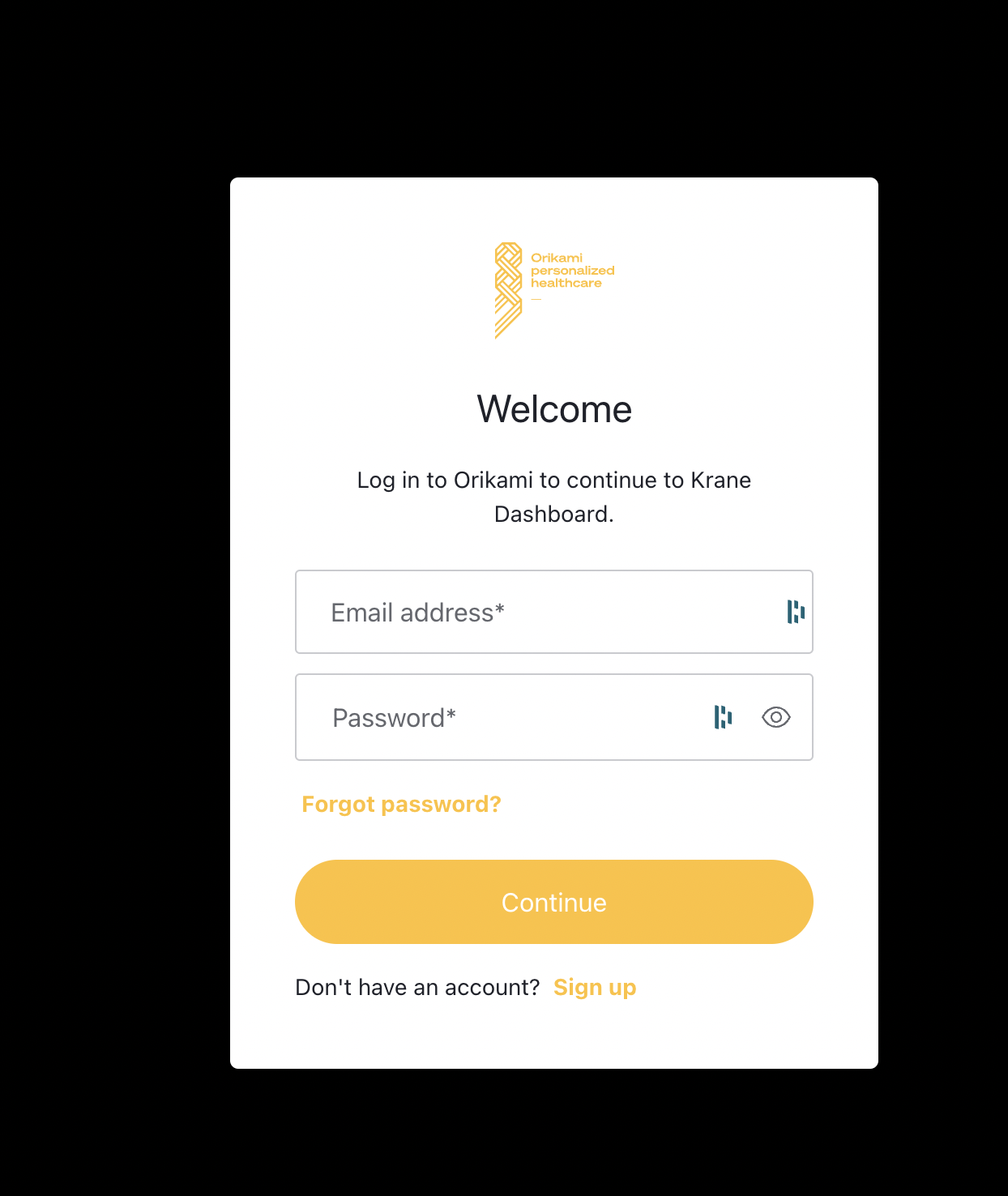
🔑 Enter your credentials.
-
🏢 If you are a member of multiple organizations, select the organization you wish to access upon logging in.
Step 4: Logout
To logout:
-
🚪Click the logout button located in the upper right corner.
Step 5: Delete participant account
To delete your account:
-
📞 Contact your organization admin for assistance.
-
🏢 The organization admin can remove a participant by clicking the three dots on the right and selecting "Delete."
By following these instructions, you can effectively manage participant accounts within the client app. For additional assistance, please contact your organization admin.