

1. Introduction
1.1 Purpose
📋 This Instruction for Use describes the functionality and configuration of the Multi-Metric Experiment. This experiment allows Members to collect multiple participant health metrics within a study, based on the setup defined at project level.
Participants can provide data from multiple sources, and Members can define which sources are optional or required for completion.
1.2 Scope
📚 The Multi-Metric Experiment can be added to new and existing projects and allows configuration of:
-
Experiment name and description
-
Duration
-
Historic data retrieval period (number of days)
-
Health metrics
-
Data sources (minimum one selected):
-
Phone
-
Wearable Device: Garmin
-
Bring-your-own-device (BYOD)
-
1.3 Definitions
Multi-Metric Experiment:
An experiment that collects and stores multiple health metrics from participants over a configured number of days.
Allowed data source:
✅ Optional data source. Participants may use it if available on their device.
Required data source:
❗ Mandatory data source. Participants must enable it to complete the experiment.
2. Functional Overview
The Multi-Metric Experiment allows collection of multiple health metrics from configurable sources. Members can:
-
➕ Add the experiment to any project
-
📝 Define experiment name and description
-
⏱ Configure the duration and historic data retrieval
-
📊 Select multiple health metrics to monitor
-
✅❗ Select multiple data sources and mark each as Allowed and/or Required
-
📅 Schedule the experiment like any other experiment (using the configured duration.)
3. Procedure Description
Step 1 – Add Multi-Metric Experiment to a Project
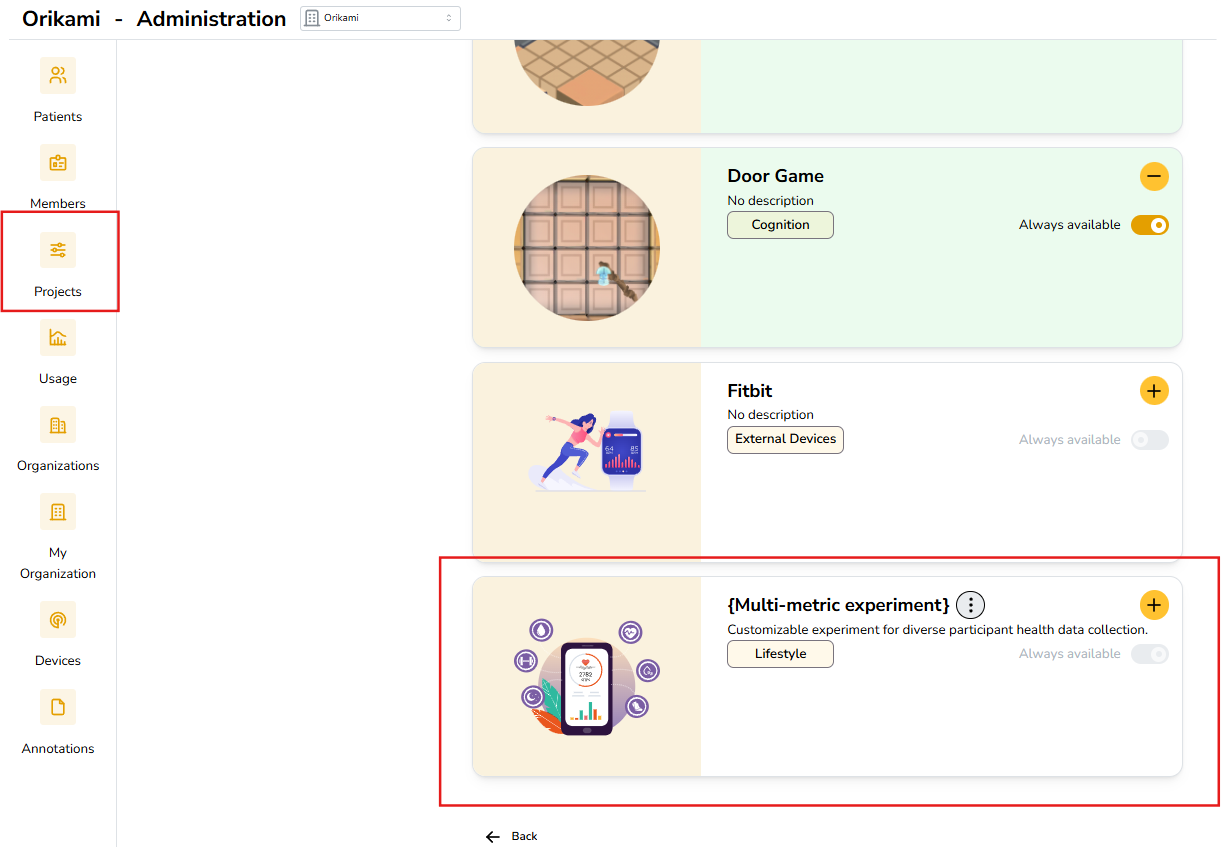
👤 A Member can add the experiment to new or existing projects.
From the project page (see Figure 1):
-
➕ Select Add button
Step 2 – Configure Experiment
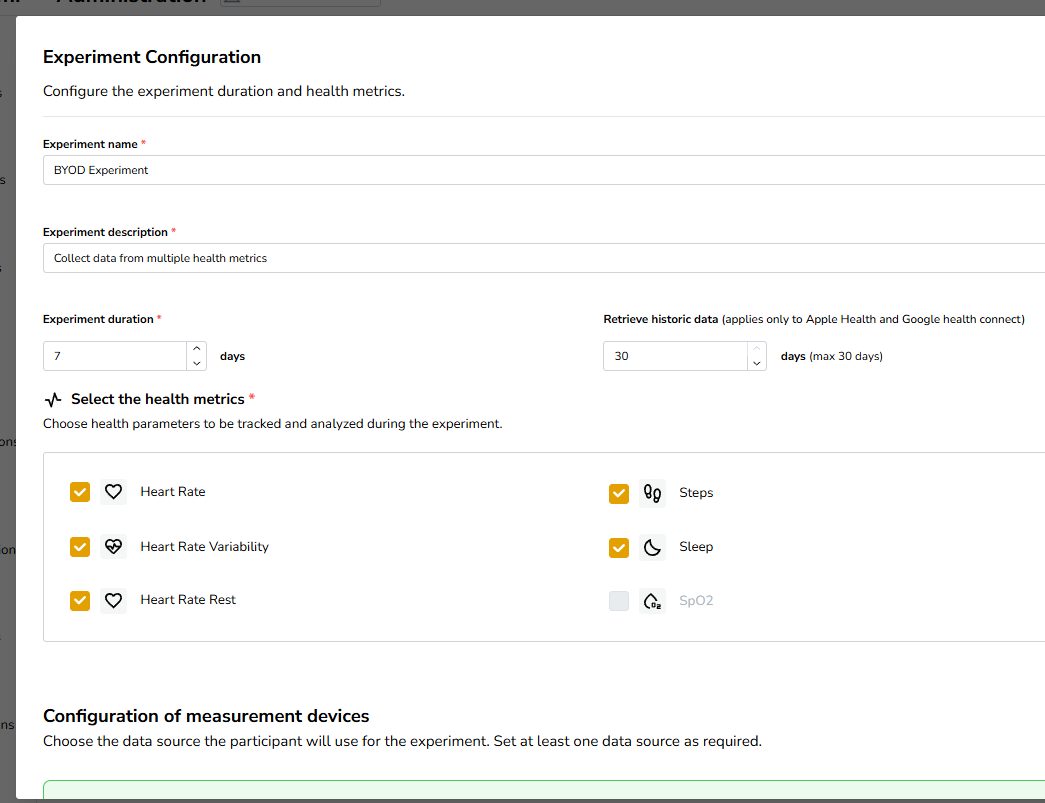
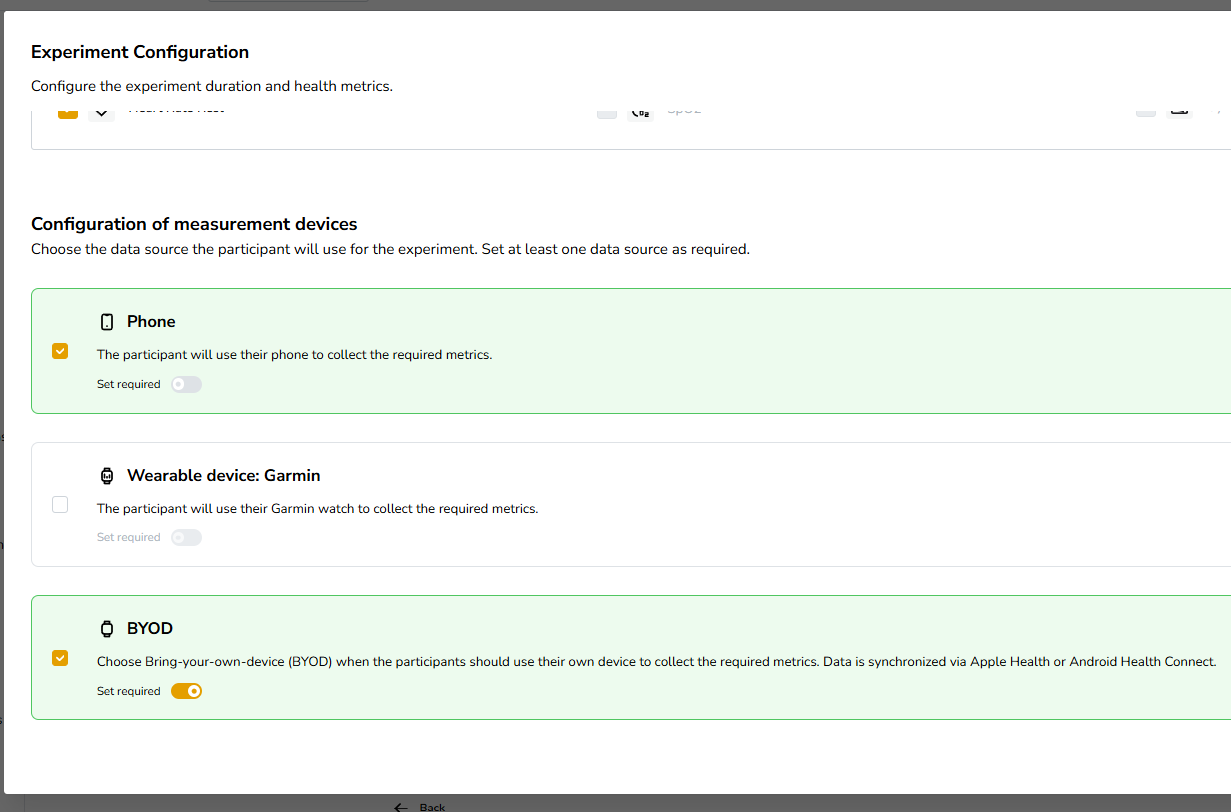
⚙️ The Member configures the experiment (see Figure 2 and Figure 3) as follows:
-
Experiment Name
📄 Mandatory; appears to participants in the Open and Planned tabs. -
Description
📝 Mandatory. -
Number of Days
📆 Defines total duration; minimum 1 day. -
Retrieve Historic Data
📂 Optionally collect data from the past 0–30 days. -
Health Metrics
📊 Select one or more metrics to monitor (mandatory). Examples:-
Heart Rate (HR)
-
Heart Rate Variability (HRV)
-
Heart Rate Rest (HRR)
-
Sleep
-
Step Count
-
-
Data Sources
📋 Select one or more sources:-
Phone
-
Garmin
-
BYOD
-
Each source can be set as:
-
✅ Allowed (optional)
-
❗ Required (mandatory)
⚠️ At least one source must be marked as Required.
Step 3 – Schedule Experiment
📅 The experiment can be scheduled like any other experiment (see MP-02 Create project).
⏳ Updating the schedule after participants have started will not affect experiments already in progress.
🛑 Members can exit the configuration page at any time and return without losing their current setup. Configuration is editable.
Step 4 – Participant Instructions & Data Collection
👤 Participants receive clear instructions on how to start the experiment and connect the data sources:
-
Experiment name appears as configured in the Portal
-
Dynamic instructions are displayed based on the health metrics and data sources selected by the Member
🟢 During the experiment period:
-
📈 The app collects metrics continuously from the selected sources
-
🔄 Data is automatically synchronized
-
✅ Once the configured period ends, the experiment is marked Completed, and no further data can be collected