

1. Introduction
Welcome to the KRANE™ Management Portal user guide. This document outlines the necessary steps to create and manage new sub organizations. Follow these instructions carefully to ensure a smooth experience.
1.1. Purpose
📋 This Instruction for Use provides a comprehensive set of tasks required to create sub-organization within the KRANE™ Management portal.
1.2. Definitions
|
Term |
Definition |
|---|---|
|
Caregivers (Members) Section |
The section in the portal where organization members can manage employee accounts. |
|
Credentials |
The username and password used by members to log in to the portal. |
|
Invitation Email |
An email sent to a new member with instructions to activate their account. |
|
KRANE™ Management Portal |
The online platform used for managing organization member accounts. |
|
New Employee Button |
The button in the portal used to add a new member by filling in basic information. |
|
Organization Admin |
An individual responsible for managing member accounts within an organization. |
|
Organization Member |
An individual who has administrative access to the KRANE™ Management Portal. |
|
Reset Password Procedure |
The process used to receive a new invitation email if the original invitation has expired. |
|
Welcome Email |
An email received by new members to set their password and activate their account. |
1.2. Scope
🔍This guide covers the complete lifecycle, from creation to obsolescence.
1.3. Responsibilities
📞For assistance, contact your main point of contact or organization administrator to receive an invitation or the correct credentials.
2. Procedure Description
Step 1: Create a new sub organization
To invite a new member (employee):
-
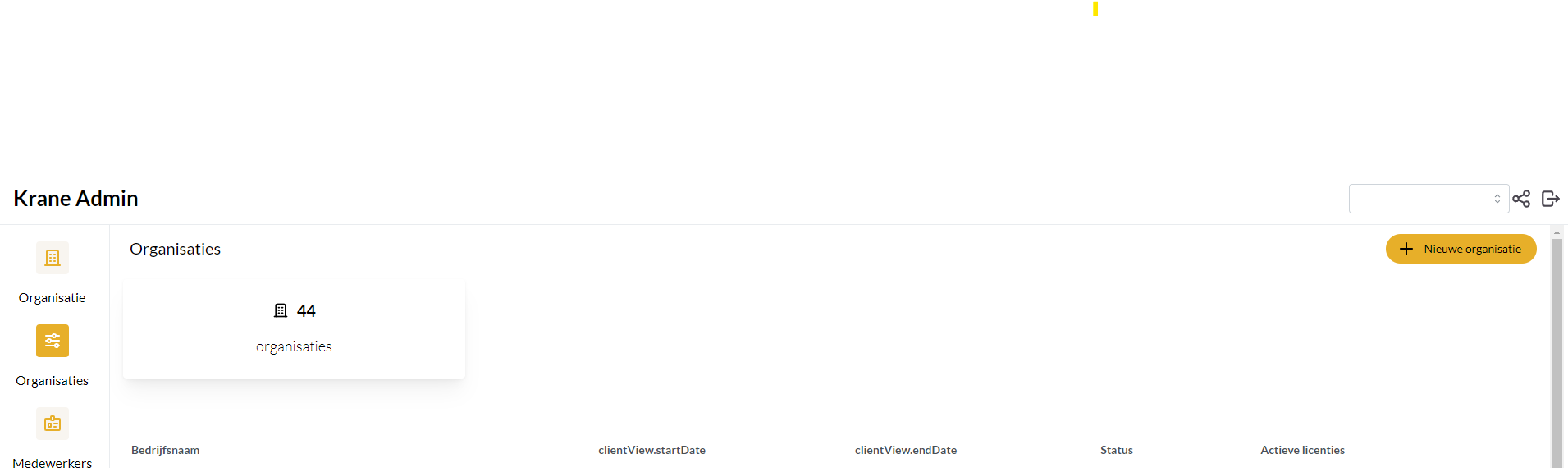
🌐 Navigate to the portal at admin.KRANE™.one using your admin account.
-
📂 Go to the "Organization" section in the navigation bar.
-
➕ Click on the "New organization" button in the upper right corner.
-
📝 Fill in the basic information required (company details)
-
📝 Fill in the person that will fullfill the admin role.
-
📝 Decide if the admin is allowed to setup new sub-organizations.
-
📧 An invitation email will be sent to the specified email address in the chosen language.
Step 2: Activate the licenses
To activate the licenses in the sub organization:
-
📂Go the the second tab in new organization.
-
📝Fill in the max # of licences, sub-organizations and billing typ.
-
📝Determine the license period.
Step 3: Select the modules
Active the modules required for the organizations.
-
📝Review the list of available modules.
-
📝Select the modules to be used by the organization.
-
⏭️ Go to next step.
-
✅ Confirm by Saving the result.
Step 4: Login
To login:
-
🔑 Enter your admin credentials.
-
🔄 If you are a member of multiple organizations, select the organization you wish to access upon logging in.
3. Delete account
To delete your account:
-
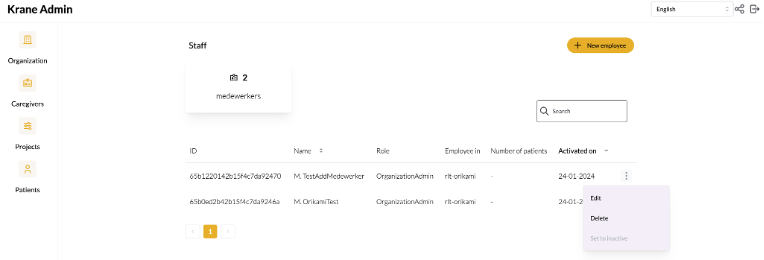
⏭️ Go to the organization tab.
-
🗑️ An organization admin can remove a organization by clicking the three dots on the right and selecting "Delete."
By following these instructions, you can efficiently manage organization accounts within the KRANE™ Management Portal. For any additional assistance, please contact your organization admin or main point of contact.