

Introduction
This manual provides step-by-step instructions on how to export pre-selected data from the KRANE platform using an executable (.exe) file created by Orikami.
Prerequisites
-
A KRANE platform account with admin access for the (sub)organization. Admin access is needed to access the results to be exported.
-
Login credentials for said KRANE account.
-
An export executable provided by Orikami.
-
A recent version of Windows.
Step-by-Step Instructions
-
Download the file provided by Orikami and save it to a folder of your choice.
-
Navigate to this folder.
-
Depending on the way the file has been shared, it may be a compressed folder containing the executable file or the executable itself.
-
If the file type is “Application” and/or extension is .exe, double-click it to execute it.
-
If the file type is “Compressed (zipped) Folder” and/or extension is .zip, you need to extract the file first. Right-click the file, choose “Extract all…” or similar, and click Extract. A new folder will appear containing the executable file. Go to this folder and double-click the executable to execute it.
-
-
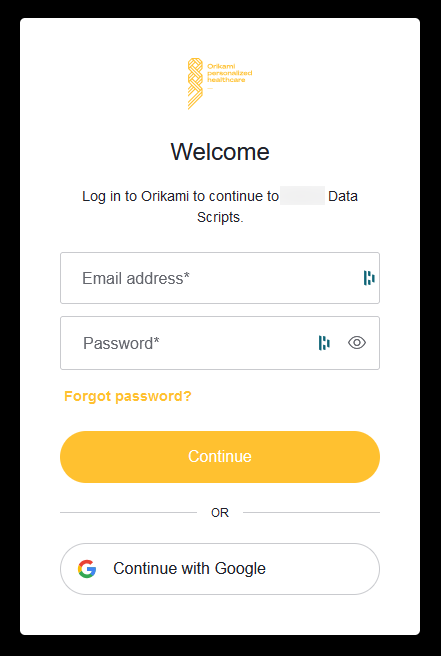
A browser window will open, showing the KRANE login screen. Log in using your KRANE credentials. If you have logged in previously, this step may be automatically skipped.
-
If necessary, select the organization for which you want to export.
-
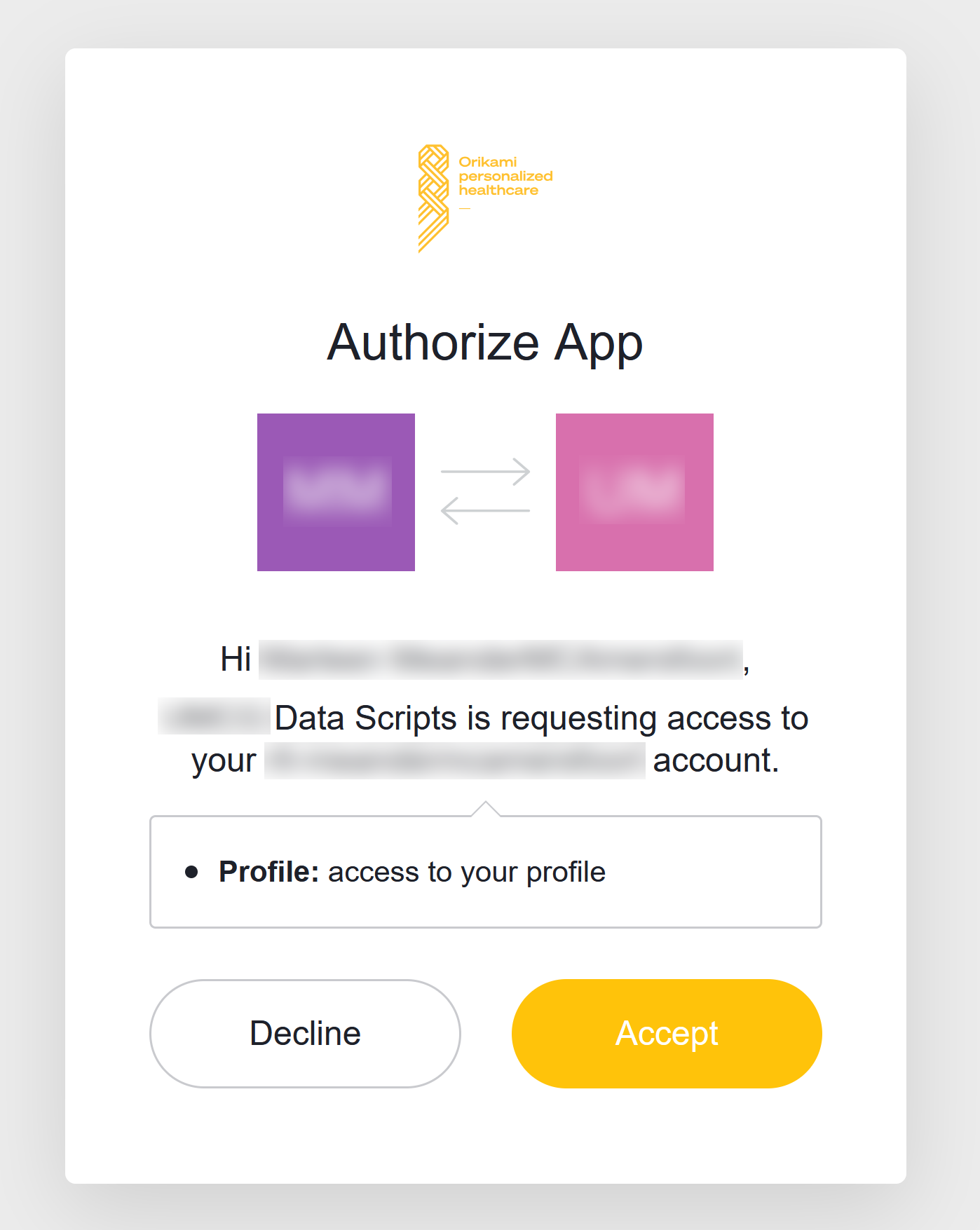
If using the export script for the first time, you may be asked to grant access to your account. Click “Accept”.
-
The window will report “Login successful. You may close this window.“
-
An Excel file containing the agreed-upon data will have been created in the same folder that contains the executable file.
Troubleshooting
Logging in for different (sub)organizations
The most recent login is stored so that you don’t need to manually log in every time. If you do not want to store the login, for example because you need to export data multiple times for different organizations, the program can be run using the “--clear-login” flag.
On Windows, this means you need to create a (reusable) shortcut on your PC that incorporates this flag. This can be accomplished as follows:
-
Right-click the executable file and choose “Create shortcut” (in Dutch: “Snelkoppeling maken”).
-
A new file appears that is a shortcut to the first executable file.
-
Right-click the new file and choose “Properties” (in Dutch: “Eigenschappen”).
-
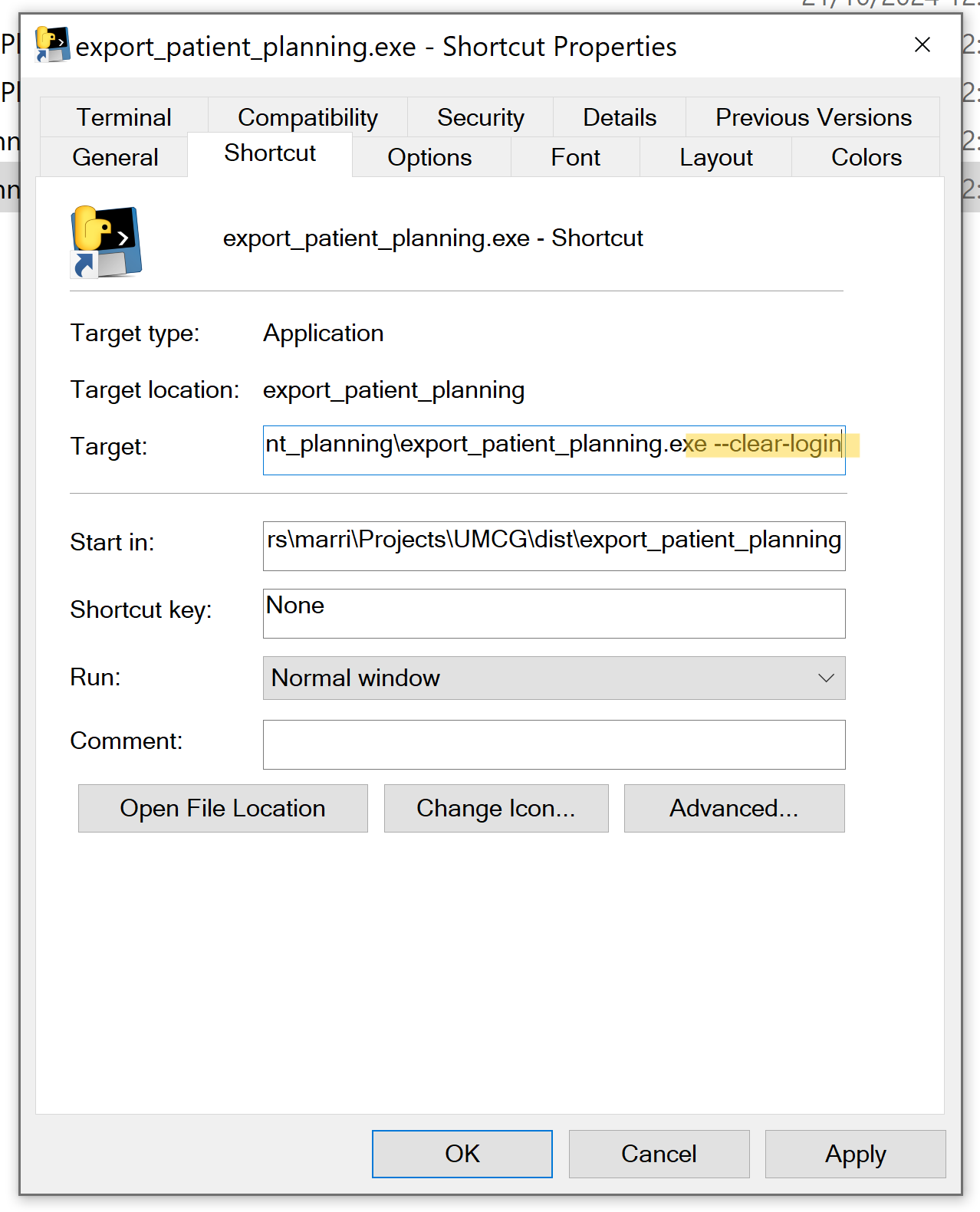
The field “Target:” (in Dutch: “Doel”) lists the location on your hard drive of the original executable. Add
--clear-loginto the end (including a space) and click OK. -
Double-click the newly made shortcut instead of the original executable. The instructions are the same as for the original, except you will see a second browser screen showing “OK” after logging in. This screen can be safely closed.
If you have previously logged in using the original executable, you may need to execute the shortcut once to clear the stored login, and a second time to log in with a different account.
No output file is created
If no Excel file is created, the program may have run into an error. You can display the error as follows:
-
Open the start menu and type “cmd”, then press Enter to launch the Command Prompt.
-
From your file explorer, drag and drop the file into the Command Prompt window. The result should look something like this:

-
Press Enter.
-
Program output will appear in the window and remain visible after the program finishes running.
If the error is something that you can’t resolve yourself, please contact Orikami support and share the error messages with us.
Data is not as expected
If the data is not as expected (that is, the information that the script provides does not suit your needs, or data appears to be incorrect in some way), please contact Orikami support.