

1. Introduction
1.1 Definitions
|
Definition |
Description |
|---|---|
|
Participant |
End-users of the app, including patients and study participants. |
|
Organization Member |
Individuals with administrative access to the KRANE™ Management Portal. |
1.2. Purpose
This Instruction for Use provides the set of tasks required to create an account for participants - end users of the app like patients or study participants - to access a client app.
1.3. Scope
This guide covers the entire account lifecycle, from creation to obsolescence.
1.4. Responsibilities
All organization members are able to create / invite new users. We are working on supporting more granular roles.
2. Procedure description
Step 1: Invite a new participant
To invite a new participant:
-
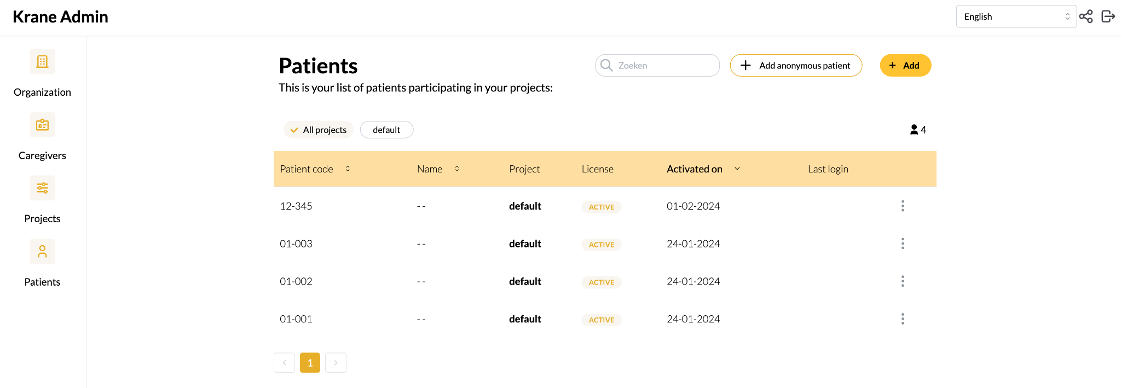
Navigate to the portal at admin.krane.one.
-
Sign in with your organization member account and select the appropriate organization.
-
Go to the "Patients (Participants)" section in the left-hand menu.
-
Click the "Add" button.
-
Fill in the basic information required to invite the participant (see also MP-03 Invite Participant).
Step 2: Activate your account
To activate your account:
-
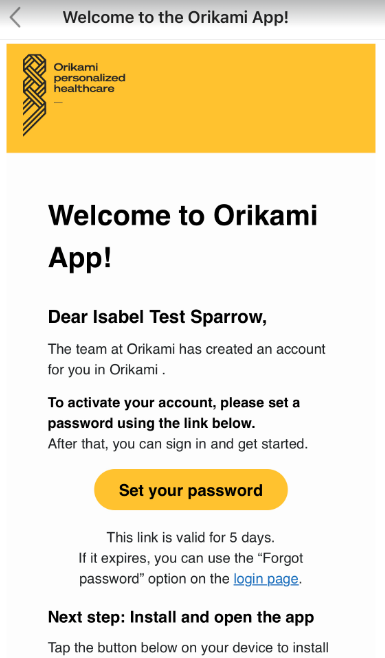
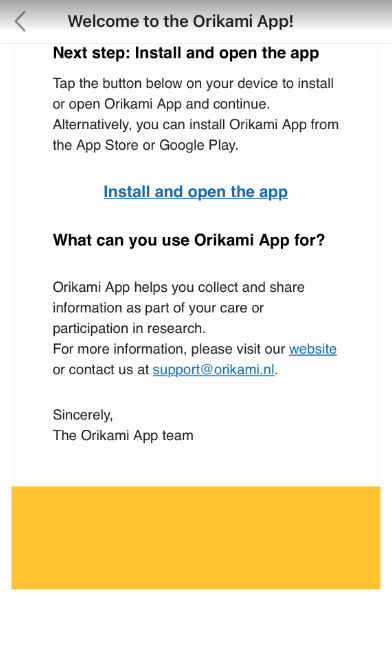
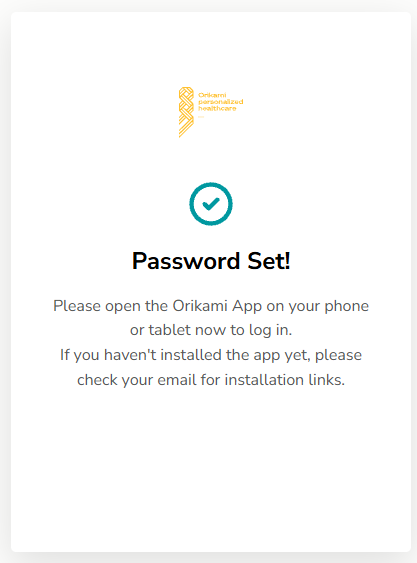
📧 Open the welcome email you received and set your password.
-
📧 The subject of the email will include the name of the organization you have been invited to.
-
⏳ The invitation expires after 5 days, after which you will not be able to set your password.
-
❓ If this happens, use the “Forgot password” option on the login page to receive a new email.
-
🔗 Click the “Set your password” button in the welcome email to set your password.
-
💻If the password has been set on the computer, a message will appear indicating to login from the mobile device.
Initial Setup
-
Enter Your Email:
-
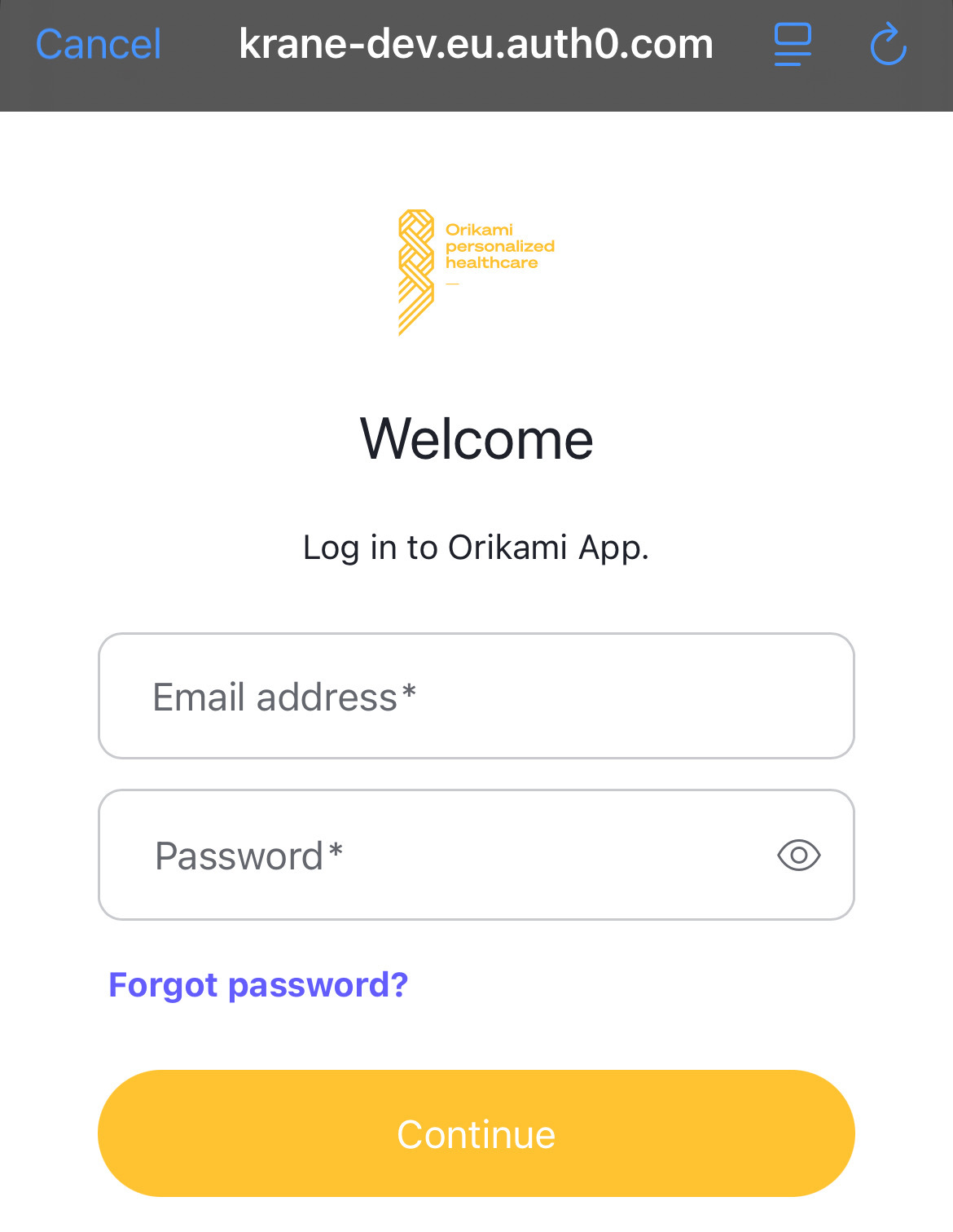
✉️ Open the Orikami App on the tablet and enter your email address. Click on "Continue."
-
-
Configure Google Authenticator:
-
🔒 Since this is your first time logging in, you need to configure Google Authenticator (or another authentication app). A QR code will appear on the screen.
-
-
Scan the QR Code:
-
📱 Open Google Authenticator (or another authentication app) on your smartphone and scan the QR code displayed on the tablet.
-
-
Add a New Account:
-
➕ In Google Authenticator, click the "+" button in the bottom right corner to add a new account.
-
-
Scan the QR Code:
-
🔍 Select "Scan a QR code" to scan the QR code from the Orikami App.
-
Step 3: Login into the Orikami App
-
Enter Your Email:
-
✉️ Open the Orikami App and enter your email address. Click on "Continue."
-
-
Enter Your Password:
-
🔑 Enter your password and click on "Continue."
-
-
Enter the Authentication Code:
-
🔢 Use the code visible in Google Authenticator (or another authentication app) to log in to the Orikami App on the tablet. A new code is generated every 30 seconds.
-
You are now logged in and will see the Orikami App home screen.
|
|
|
2.4 Logging Out of the Orikami App
To log out of the Orikami App, follow these steps:
-
Open Settings:
-
⚙️ Click on "Settings" in the menu at the bottom right corner, then click on "Log out."
-
-
Confirmation:
-
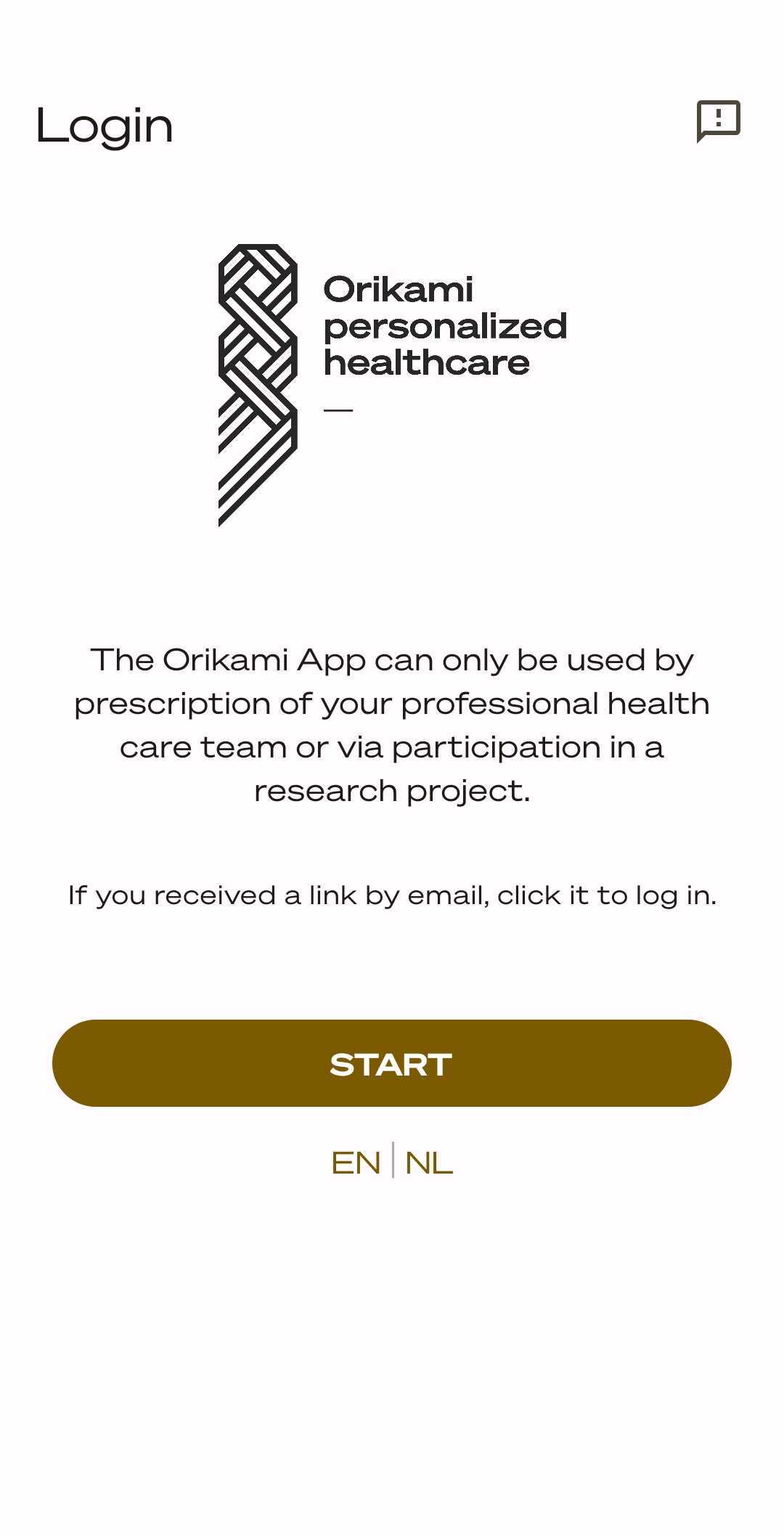
🚪 The login screen will appear, indicating you have successfully logged out.
-
2.5 Delete account
To delete your account:
-
📞 Contact your organization admin for assistance.
-
➂ The organization admin can remove a member by clicking the three dots on the right and selecting "Delete."
By following these instructions, you can effectively manage participant accounts within the client app. For additional assistance, please contact your organization admin.