1. Introduction
1.1 Purpose
This Instruction for Use provides the set of tasks required to view and navigate the Insights Tab.
2. Procedure description
Step 1: Open the Insights Tab
To access the Insights Dashboards:
📱 Open the App.
🔑 Sign in with your credentials.
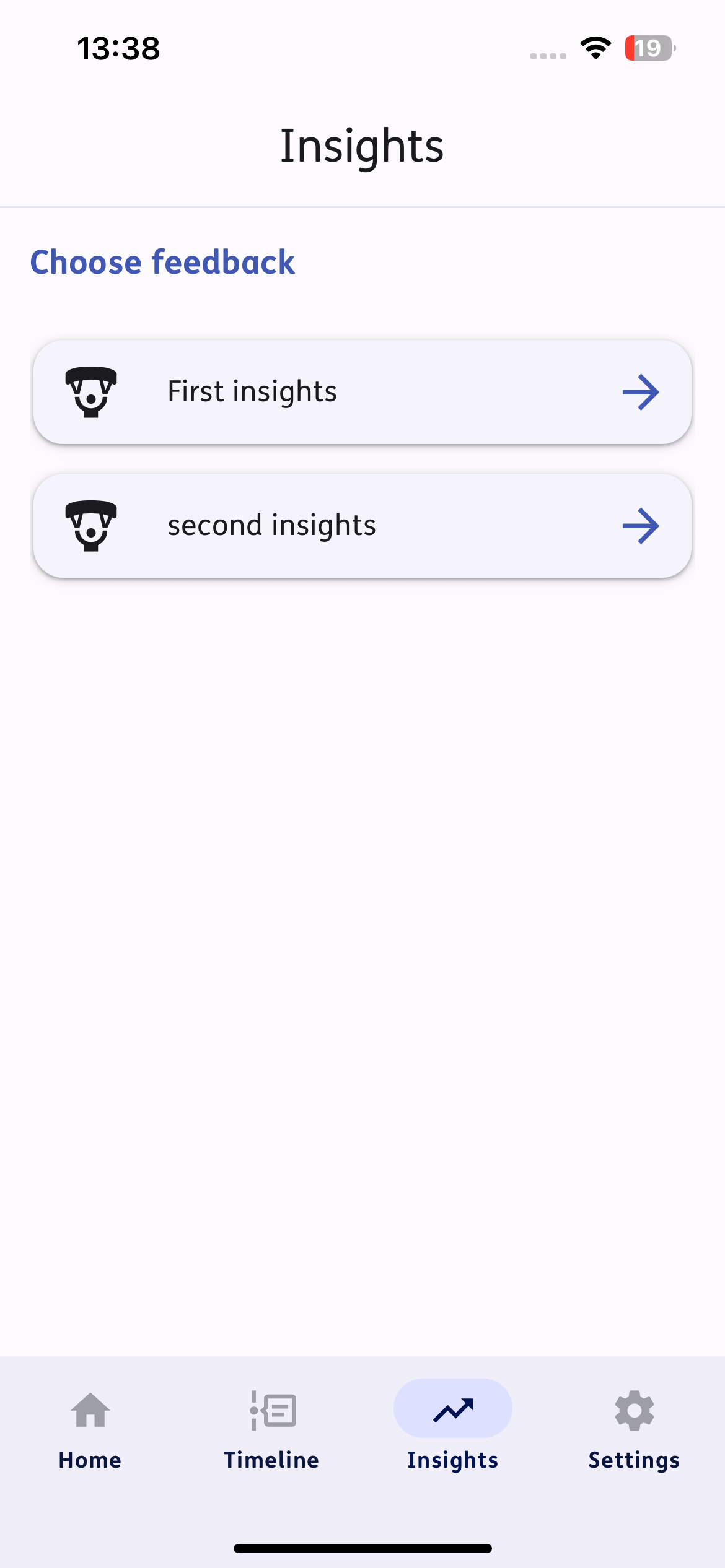
📊 Navigate to the Insights Tab (only visible if at least one dashboard with a configured period and panel is available).
👁️ Review the list of dashboards.
Step 2: Open a Insight Dashboard
To view dashboard details:
👉 Tap on the desired Insight Dashboard.
🔄 Navigate back to the main list at any time from the detail view.
Step 3: Select Period and Date
To filter the data:
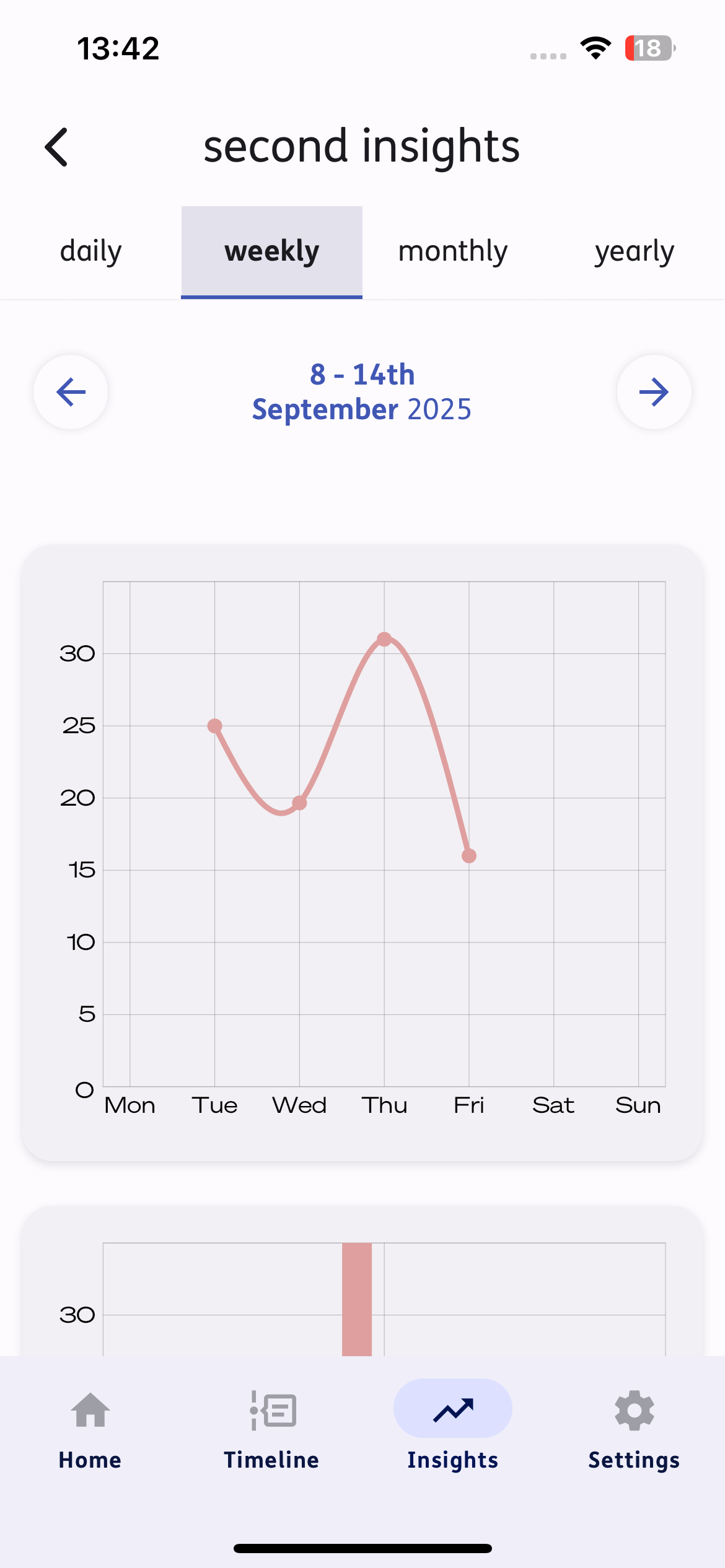
📅 Choose a period (Day, Week, or Month).
➡️ The order is always Day → Week → Month.
🔄 Data will refresh automatically when a new period or date is selected.
⚠️ If no data is available, the app displays: “No data available.”
Step 4: Explore Panels
Insights Dashboards can include different types of panels depending on configuration:
📊 Chart Panel
-
Can display Bar charts (multiple bars) or Line charts (multiple lines).
-
Includes: Title, subheading text, chart, labels, and advice.
-
Advice is dynamic and expandable via “Read more.”
🔢 Stat Panel
-
Displays a single stat value.
-
Includes: Title, subheading text, stat, and advice.
-
Advice is dynamic and expandable via “Read more.”
📝 Text Panel
-
Displays textual content.
-
Includes: Title, subheading text, text, labels, and advice.
-
Advice is dynamic and expandable via “Read more.”
💡 Information Card
-
Displays advice or information text.
-
If text > 3 lines → a “Read more” button appears to view full text.
-
If text ≤ 3 lines → no button is shown.
-
User can return to the panel view from the full-text view.